Showing posts with label json. Show all posts

How to format large JSON file easily on Windows via Notepad++

How to format large JSON file easily on Windows via Notepad++


Totorial how to format large JSON file n windows using notepad pluplus


In this tutorial, we will show you how to format large JSON files very easily on Windows operating system using Notepad++ universal editor with proper JSON plugin.

Notepad++ is a free source code editor and Notepad replacement that supports several programming languages. Running in the MS Windows environment, its use is governed by GNU General Public License.

Notepad++ is based on the powerful editing component Scintilla, Notepad++ is written in C++ and uses pure Win32 API and STL which ensures a higher execution speed and smaller program size. 

Solving :


Watch on YouTube : 


Step 1 : Download and Install Notepad++


Download and install Notepad++ editor from official website : 

Step 1 : download and install Notepad++ from official website


Step 2 : Run Notepad++ app on Windows


Start your freshly installed ( or already installed ) Notepad++ editor app on your operating system ( I am using Windows )

Step 2 : run notepad++ by clicking on desktop icon


Step 3 : Open Plugins Admin dialog


- In the top menu bar, click on the "Plugins" menu item

- In the popup list, click on "Plugins Admin..."

Open Plugins Admin in Notepad++ menu


Step 4 : Find and Install JSON Tools 8.4 Notepad++ Plugin


- Type "JSON" in the Search field of  the "Plugins Admin" dialog

- Find JSON Tools 8.4 plugin by Mark Olson

- Enable the checkbox for JSON Tools 8.4

- Click the "Instal" button in the bottom right corner of the window

Step 4 - search and install JSON Tools 8.4 plugin for Notepad++ by Mark Olson - codingtrabla tutorial


Step 5 : Explore JSON Tools plugin in Notepad++ menu 


- Locate the newly installed plugin in the Notepad++ menu bar 
(typically located at the top of the window) 

- Navigate to Plugins -> JsonTools to explore the available commands and features

Step 5 : explore Json Tools plugin in Notepad++ menu


Step 6 : Format large JSON file using Notepad++ JsonTools

Now let's do some work ;)

- Open a large json file. I used this : 
https://github.com/json-iterator/test-data/blob/master/large-file.json

- Plugins -> JsonTools -> Pretty-print current JSON file
or press Ctrl + Alt + Shift + P

Step 6 : Format large JSON file using Notepad++ JsonTools

Hooray ! Our formatted large JSON file is awesome !

Hooray ! Our formatted in Notepad++ large JSON file is awesome !

Step 7 : Explore the JsonTools plugin files

Now, let’s satisfy our curiosity and explore the JsonTools plugin's local files.

- In menu click "Plugins -> Open Plugins Folder ... "

Notepad++ : In menu click Plugins - Open Plugins Folder ...

- Now go inside "JsonTools" folder 

Now go inside "JsonTools" folder


As we can see JsonTools plugin is DLL file 
A DLL (Dynamic Link Library) is a file in Windows containing reusable code and data 

As we can see JsonTools plugin is DLL file

- Now let's go into "translations" folder. 
As we can see it consist of .json5 config file for each supported language.
JSON5 is an extension to the popular JSON file format that aims to be easier to write and maintain by hand (eg for config files).


JsonTools translations json5


- Now let's check out the content of  the japanese.json5 translation file. 
Sugoi (すごい) ! ;)

Now let's check out the content of  the japanese.json5 translation file


- Final folder to explore is "testfiles" of JsonTools plugin.

Final folder to explore is "testfiles"


As we can see - here are the json test files for plugin. Awesome!
Now we know that creator tested his staff.

As we can see - here are the json test files for plugin. Awesome!


Well Done


We made it ! We found an easy offline solution to format large JSON files.
This allows us to improve security by NOT sharing JSON data with data collection online tools.
Awesome!

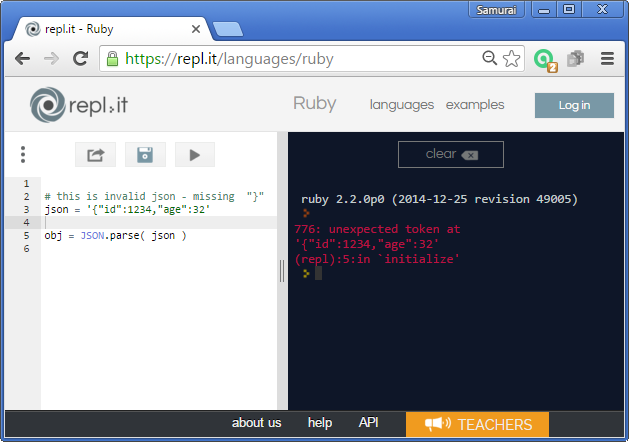

Ruby & JSON: error - 776: unexpected token at

Trabla: Ruby & JSON: error - 776: unexpected token at


Solving:

This error appears when json is not valid and parsing failed.

Example:

# this is invalid json - missing  "}"
json = '{"id":1234,"age":32'  

obj = JSON.parse( json )

Ruby JSON error - 776 unexpected token at


php & json: json_decode check errors

Trabla:  php & json: json_decode check errors

Solving:

Php function json_decode in case of json parsing errors returns null.
To catch errors use function  json_last_error - returns the last error occurred ( int code )

(PHP 5 >= 5.5.0, PHP 7)
json_last_error_msg — Returns the error string of the last json_encode() or json_decode() call
Example:

$valid_json = '{"name":"Trololo"}';
$invalid_json = '{"name":"Trololo" ';

$obj = json_decode( $valid_json );

$obj = json_decode( $invalid_json );

switch (json_last_error()) {
 case JSON_ERROR_NONE: 
      echo ' - No errors'; 
      break; 
case JSON_ERROR_DEPTH: 
       echo ' - Maximum stack depth exceeded'; 
       break; 
case JSON_ERROR_STATE_MISMATCH: 
       echo ' - Underflow or the modes mismatch'; 
        break; 
case JSON_ERROR_CTRL_CHAR: 
        echo ' - Unexpected control character found'; 
        break; 
case JSON_ERROR_SYNTAX: 
        echo ' - Syntax error, malformed JSON'; 
        break; 
case JSON_ERROR_UTF8: 
        echo ' - Malformed UTF-8 characters, possibly incorrectly encoded'; 
        break; 
default: 
        echo ' - Unknown error'; 
break; 
}

Official Docs:

json_decode - http://php.net/manual/en/function.json-decode.php
json_last_error - http://php.net/manual/en/function.json-last-error.php

Gson: java object to json

Trabla: Gson: java json parser example


Gson library java object to json tutorial


Gson (also known as Google Gson) is an open source Java library to serialize and deserialize Java objects to (and from) JSON.
https://en.wikipedia.org/wiki/Gson

Solving:

1. Download Gson jar from "The Central Repository"

http://search.maven.org/#artifactdetails%7Ccom.google.code.gson%7Cgson%7C2.6.2%7Cjar

Gson library java object to json tutorial screenshot 1


2. Drag-n-drop Gson .jar into your Eclipse project source folder

Gson library java object to json tutorial screenshot 2


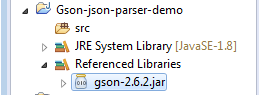
3. Right click on jar - add "Build path" -> "Add to build path"

Gson library java object to json tutorial screenshot 3

Gson library java object to json tutorial screenshot 4


4. Source code

package com.codingtrabla.demos;

import java.util.ArrayList;
import java.util.List;

import com.google.gson.Gson;

public class GsonUsageDemo {

public static void main(String[] args) {

Gson gson = new Gson();

List<String> list = new ArrayList<String>();

list.add("New York");
list.add("London");
list.add("Sydney");

String json = gson.toJson( list );

System.out.println(json);

}

}

Gson library java object to json tutorial screenshot 5

Gson library java object to json tutorial screenshot 6


Output:
["New York","London","Sydney"]

Gson library java object to json tutorial screenshot 7


Json online parser

Trabla: Json online parser


Json online parser


Solving:

Use http://json.parser.online.fr/

Simply paste json to left text tab.

Json online parser tutorial