Showing posts with label CMF. Show all posts

Install SilverStripe 3.5.0 CMS Framework on windows 7 localhost XAMPP 5.6.28

Trabla:  Install SilverStripe 3.5.0 CMS Framework on windows 7 x64 localhost XAMPP 5.6.28 - opensource PHP CMS / CMF


Install SilverStripe 3.5.0 CMS Framework on windows 7 localhost XAMPP 5.6.28
SilverStripe is a free and open source Content Management System (CMS) and Framework for creating and maintaining websites and web applications. It provides an out of the box web-based administration panel that enables users to make modifications to parts of the website, which includes a WYSIWYG website editor. The core of the software is SilverStripe Framework, a PHP Web application framework. SilverStripe is released under the terms of the BSD License.

Solving:


Watch on YouTube

1. php.ini changes:
- max_execution_time = 600
- display_errors = Off
-  uncomment extension=php_tidy.dll
( remove ; )
- Save + close php.ini

2. Apache config httpd.conf changes:
- Add to the end of file 

<IfModule mpm_winnt_module>
   ThreadStackSize 8388608
</IfModule>

- Save + close

3. SQL script to create database for SilverStripe 3.5.0 used in tutorial:

CREATE DATABASE `silverstripe` 
DEFAULT CHARACTER SET utf8 COLLATE utf8_general_ci;

CREATE USER 'silverstripe-owner'@'localhost'; 
CREATE USER 'silverstripe-owner'@'127.0.0.1';
CREATE USER 'silverstripe-owner'@'::1';

SET PASSWORD 
FOR 'silverstripe-owner'@'localhost' = PASSWORD('silverstripe123$%');
SET PASSWORD 
FOR 'silverstripe-owner'@'127.0.0.1' = PASSWORD('silverstripe123$%');
SET PASSWORD 
FOR 'silverstripe-owner'@'::1' = PASSWORD('silverstripe123$%');


GRANT ALL PRIVILEGES ON 
`silverstripe`.* TO 'silverstripe-owner'@'localhost' WITH GRANT OPTION;
GRANT ALL PRIVILEGES ON 
`silverstripe`.* TO 'silverstripe-owner'@'127.0.0.1' WITH GRANT OPTION;
GRANT ALL PRIVILEGES ON 
`silverstripe`.* TO 'silverstripe-owner'@'::1' WITH GRANT OPTION;

Install Processwire 3.0.36 on windows 7 localhost - opensource PHP CMS / CMF

Trabla: Install Processwire 3.0.36 on windows 7 localhost ( XAMPP 5.6.24 )  - opensource PHP content management system  ( CMS ) / content management framework  ( CMF )


Install Processwire 3.0.36 on windows 7 localhost - opensource PHP CMS / CMF

ProcessWire is an open source content management framework (CMF) and content management system (CMS) written in the PHP (5.3+) programming language. It is distributed under the Mozilla Public License 2.0. ProcessWire is built around an API loosely inspired by syntax used in the JavaScript framework jQuery. The goal behind the API is to provide the level of accessibility and control to a site's page content that jQuery provides to the DOM.
While originally developed purely as a CMF, ProcessWire is currently distributed as a combined CMF and CMS, with the CMS portion providing an administrative control panel for web-based management of content.
ProcessWire focuses on being markup agnostic, leaving output to the user. In this manner, the framework is intended to provide flexibility for output in web sites, web services and related applications. The goal was to let the individual site drive the direction of the output, rather than tailor a site around existing generated CMF/CMS output.

Solving:


Install Kajona 5.0 CMF on windows

Trabla: Install Kajona 5.0 content managment framework ( CMF ) on windows ( XAMPP 5.6.21 )


Install Kajona 5.0 PHP CMS CMF on windows XAMPP tutorial


Kajona is a PHP5 based content management framework ( CMF ), released and developed as an open source project using the LGPL-licence. The system requires a relational database system such as MySQL, PostgreSQL or SQLite. Due to the abstraction of the database provided by Kajonas database-layer, nearly all relational database systems can be connected. Kajona uses UTF-8 to store its content, resulting in a system suitable for international websites. Since the system is written as a framework, external developers are able to enrich the system with new functionalities using one of the many hooks / plugin concepts Kajona provides. There are HotSpots for nearly every aspect such as for widgets, search plugins, elements or modules.
https://en.m.wikipedia.org/wiki/Kajona

Solving:


Watch on YouTube


1.  Download and install XAMPP 5.6.21 from official site:
https://www.apachefriends.org/download.html

Install Kajona 5.0 PHP CMS CMF on windows XAMPP tutorial 1


2.  Download Kajona 5.0 CMF   installer from official site:
https://www.kajona.de/

Install Kajona 5.0 PHP CMS CMF on windows XAMPP tutorial 2

Install Kajona 5.0 PHP CMS CMF on windows XAMPP tutorial 3


3. Create folder \kajona XAMPP htdocs folder
C:\xampp\htdocs\kajona
and copy all files from downloaded Kajona 5.0 CMF   .zip source

Install Kajona 5.0 PHP CMS CMF on windows XAMPP tutorial 4

4. Run XAMPP Control Panel 
open php.ini file ( Apache ->  Config-> PHP(php.ini) )
and change value
from
max_execution_time=30
to
max_execution_time=120
+ save file.

Install Kajona 5.0 PHP CMS CMF on windows XAMPP tutorial 5

Install Kajona 5.0 PHP CMS CMF on windows XAMPP tutorial 6

Install Kajona 5.0 PHP CMS CMF on windows XAMPP tutorial 7

- start Apache
- start Database

Install Kajona 5.0 PHP CMS CMF on windows XAMPP tutorial 8


5. Open in browser following url to start Kajona 5.0 CMF  web installation
http://localhost/kajona/installer.php

"PHP configuration" page - scroll down & click "Next step" button

Install Kajona 5.0 PHP CMS CMF on windows XAMPP tutorial 9

Install Kajona 5.0 PHP CMS CMF on windows XAMPP tutorial 10

5. "Database settings" page

Install Kajona 5.0 PHP CMS CMF on windows XAMPP tutorial 11

Now we need to create Database for  Kajona 5.0 CMF

1) Open phpMyAdmin in new browser tab (or window :) ) - http://localhost/phpmyadmin
2) Open SQL tab
3) Execute following query

Install Kajona 5.0 PHP CMS CMF on windows XAMPP tutorial 12

CREATE DATABASE `kajona` 
DEFAULT CHARACTER SET utf8 COLLATE utf8_general_ci;

CREATE USER 'kajona-owner'@'localhost'; 
CREATE USER 'kajona-owner'@'127.0.0.1';
CREATE USER 'kajona-owner'@'::1';

SET PASSWORD 
FOR 'kajona-owner'@'localhost' = PASSWORD('kajona123$%');
SET PASSWORD 
FOR 'kajona-owner'@'127.0.0.1' = PASSWORD('kajona123$%');
SET PASSWORD 
FOR 'kajona-owner'@'::1' = PASSWORD('kajona123$%');


GRANT ALL PRIVILEGES ON 
`kajona`.* TO 'kajona-owner'@'localhost' WITH GRANT OPTION;
GRANT ALL PRIVILEGES ON 
`kajona`.* TO 'kajona-owner'@'127.0.0.1' WITH GRANT OPTION;
GRANT ALL PRIVILEGES ON 
`kajona`.* TO 'kajona-owner'@'::1' WITH GRANT OPTION;

Install Kajona 5.0 PHP CMS CMF on windows XAMPP tutorial 13

Install Kajona 5.0 PHP CMS CMF on windows XAMPP tutorial 14

Go back  to Kajona 5.0 CMF  installation page

- type Database server localhost
- type Database user - kajona-owner
- type Database password - kajona123$%
- type Database name - kajona
- select Database driver - MariaDB
- click "SAVE TO CONFIG.PHP" button

Install Kajona 5.0 PHP CMS CMF on windows XAMPP tutorial 15


6. "Admin access" page - enter admin data + click "CREATE ACCOUNT" button.

Install Kajona 5.0 PHP CMS CMF on windows XAMPP tutorial 16

7.  "Installation" page - click "START INSTALLATION"

Install Kajona 5.0 PHP CMS CMF on windows XAMPP tutorial 17

8. Installation Completed.

Install Kajona 5.0 PHP CMS CMF on windows XAMPP tutorial 18

 - Delete file installer.php in C:\xampp\htdocs\kajona\installer.php

Install Kajona 5.0 PHP CMS CMF on windows XAMPP tutorial 19

Enjoy Kajona 5.0 CMF

Install Kajona 5.0 PHP CMS CMF on windows XAMPP tutorial 20

Install Kajona 5.0 PHP CMS CMF on windows XAMPP tutorial 21

Install Kajona 5.0 PHP CMS CMF on windows XAMPP tutorial 22

Install Kajona 5.0 PHP CMS CMF on windows XAMPP tutorial 23

Install Kajona 5.0 PHP CMS CMF on windows XAMPP tutorial 24

Install Kajona 5.0 PHP CMS CMF on windows XAMPP tutorial 25

Install Kajona 5.0 PHP CMS CMF on windows XAMPP tutorial 26

Install Kajona 5.0 PHP CMS CMF on windows XAMPP tutorial 27

Install Cotonti Siena 0.9.19 CMF/CMS on windows

Trabla: Install Cotonti Siena 0.9.19 CMF/CMS on windows ( XAMPP 5.6.21 )


Install Cotonti Siena 0.9.19 CMF / CMS on windows tutorial 1
Cotonti is a modular open source content management system ( CMS )
and content management framework ( CMF ) powered by PHP and MySQL.

For an end-user Cotonti is a medium-featured content management system suitable for online communities, business and personal sites in first place, that can be extended for a variety of other site kinds: blogs, E-commerce, newspapers, gaming clans, corporate portals, etc.

From a developer's point of view it consists of a minimalistic content management framework and a set of modules implementing standard behavior for exact website types. Application logic is built in conventional scripting style relying on APIs and models provided by the framework and other modules.
https://en.m.wikipedia.org/wiki/Cotonti


Watch on YouTube

Solving:

1.  Download and install XAMPP 5.6.21 from official site:
https://www.apachefriends.org/download.html

Install Cotonti Siena 0.9.19 CMF / CMS on windows tutorial 2


2.  Download Cotonti Siena 0.9.19 CMF/CMS   installer from official site:
https://www.cotonti.com/

Install Cotonti Siena 0.9.19 CMF / CMS on windows tutorial 3

Install Cotonti Siena 0.9.19 CMF / CMS on windows tutorial 4

Install Cotonti Siena 0.9.19 CMF / CMS on windows tutorial 5

3. Create folder \cotonti XAMPP htdocs folder
C:\xampp\htdocs\cotonti
and copy all files from downloaded Cotonti Siena 0.9.19 CMF/CMS   .zip source

Install Cotonti Siena 0.9.19 CMF / CMS on windows tutorial 6


4. Run XAMPP Control Panel 
- start Apache
- start Database

Install Cotonti Siena 0.9.19 CMF / CMS on windows tutorial 7


5. Open in browser following url to start  Cotonti Siena 0.9.19 CMF/CMS  web installation
http://localhost/cotonti/install.php
- Click "Next"

Install Cotonti Siena 0.9.19 CMF / CMS on windows tutorial 8


6. "Server info" page - click "Next" button

Install Cotonti Siena 0.9.19 CMF / CMS on windows tutorial 9


7. "Database settings" page

Install Cotonti Siena 0.9.19 CMF / CMS on windows tutorial 10


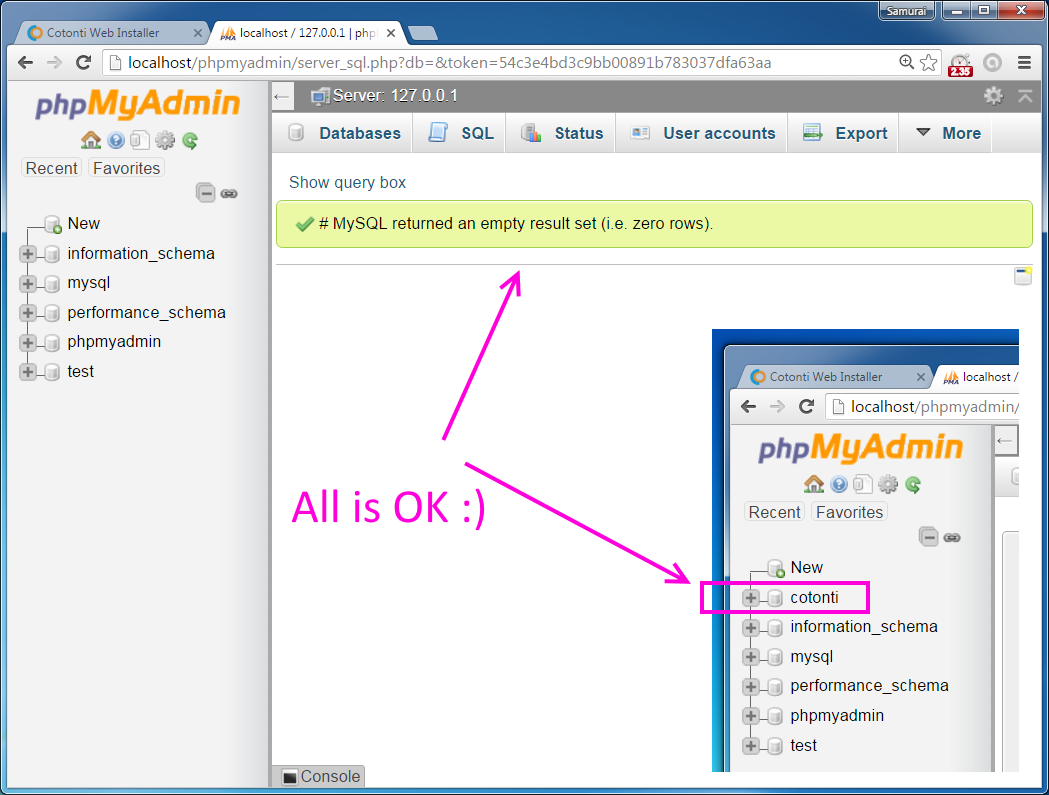
Now we need to create Database for Cotonti Siena 0.9.19 CMF/CMS

1) Open phpMyAdmin in new browser tab (or window :) ) - http://localhost/phpmyadmin
2) Open SQL tab
3) Execute following query

Install Cotonti Siena 0.9.19 CMF / CMS on windows tutorial 11

CREATE DATABASE `cotonti` 
DEFAULT CHARACTER SET utf8 COLLATE utf8_general_ci;

CREATE USER 'cotonti-owner'@'localhost'; 
CREATE USER 'cotonti-owner'@'127.0.0.1';
CREATE USER 'cotonti-owner'@'::1';

SET PASSWORD 
FOR 'cotonti-owner'@'localhost' = PASSWORD('cotonti123$%');
SET PASSWORD 
FOR 'cotonti-owner'@'127.0.0.1' = PASSWORD('cotonti123$%');
SET PASSWORD 
FOR 'cotonti-owner'@'::1' = PASSWORD('cotonti123$%');


GRANT ALL PRIVILEGES ON 
`cotonti`.* TO 'cotonti-owner'@'localhost' WITH GRANT OPTION;
GRANT ALL PRIVILEGES ON 
`cotonti`.* TO 'cotonti-owner'@'127.0.0.1' WITH GRANT OPTION;
GRANT ALL PRIVILEGES ON 
`cotonti`.* TO 'cotonti-owner'@'::1' WITH GRANT OPTION;

Install Cotonti Siena 0.9.19 CMF / CMS on windows tutorial 12

Install Cotonti Siena 0.9.19 CMF / CMS on windows tutorial 13

Go back  to Cotonti Siena 0.9.19 CMF/CMS installation page - fill all fields
( use

database name - cotonti
user cotonti-owner
password ( for user ) - cotonti123$%
)
and click "Next"

Install Cotonti Siena 0.9.19 CMF / CMS on windows tutorial 14


8. "Administrator Account" page - enter admin credentials you need
and click "Next".

Install Cotonti Siena 0.9.19 CMF / CMS on windows tutorial 15

9. "Modules & plugins & components ,etc. " page

Install Cotonti Siena 0.9.19 CMF / CMS on windows tutorial 16

Enable components you need + click "Finish" button.

Install Cotonti Siena 0.9.19 CMF / CMS on windows tutorial 17

Install Cotonti Siena 0.9.19 CMF / CMS on windows tutorial 18

Install Cotonti Siena 0.9.19 CMF / CMS on windows tutorial 19

Install Cotonti Siena 0.9.19 CMF / CMS on windows tutorial 20

Install Cotonti Siena 0.9.19 CMF / CMS on windows tutorial 21

10. Installation completed. Click "Visit site"

Install Cotonti Siena 0.9.19 CMF / CMS on windows tutorial 22

11.  Delete "install.php" script in c:\xampp\htdocs\cotonti folder

Install Cotonti Siena 0.9.19 CMF / CMS on windows tutorial 23


12. Login with admin credentials, than open "administration panel"

Install Cotonti Siena 0.9.19 CMF / CMS on windows tutorial 24

Install Cotonti Siena 0.9.19 CMF / CMS on windows tutorial 25

Install Cotonti Siena 0.9.19 CMF / CMS on windows tutorial 26

Enjoy Cotonti Siena 0.9.19 CMF/CMS  :)

Install Cotonti Siena 0.9.19 CMF / CMS on windows tutorial 27

Install Cotonti Siena 0.9.19 CMF / CMS on windows tutorial 28

Install Cotonti Siena 0.9.19 CMF / CMS on windows tutorial 29

Install Cotonti Siena 0.9.19 CMF / CMS on windows tutorial 30

Install Cotonti Siena 0.9.19 CMF / CMS on windows tutorial 31

Install Cotonti Siena 0.9.19 CMF / CMS on windows tutorial 32

Install Cotonti Siena 0.9.19 CMF / CMS on windows tutorial 33