Showing posts with label Windows. Show all posts

Open .png image in Paint.Net from PHP script on Windows 10

Open .png image in Paint.Net from PHP script on Windows 10

tutorial open paint net image from php script

This tutorial will show you how to run paint.net image editing software from a php script. Paint.NET is image and photo editing software for PCs that run Windows. It features an intuitive and innovative user interface with support for layers, unlimited undo, special effects, and a wide variety of useful and powerful tools.

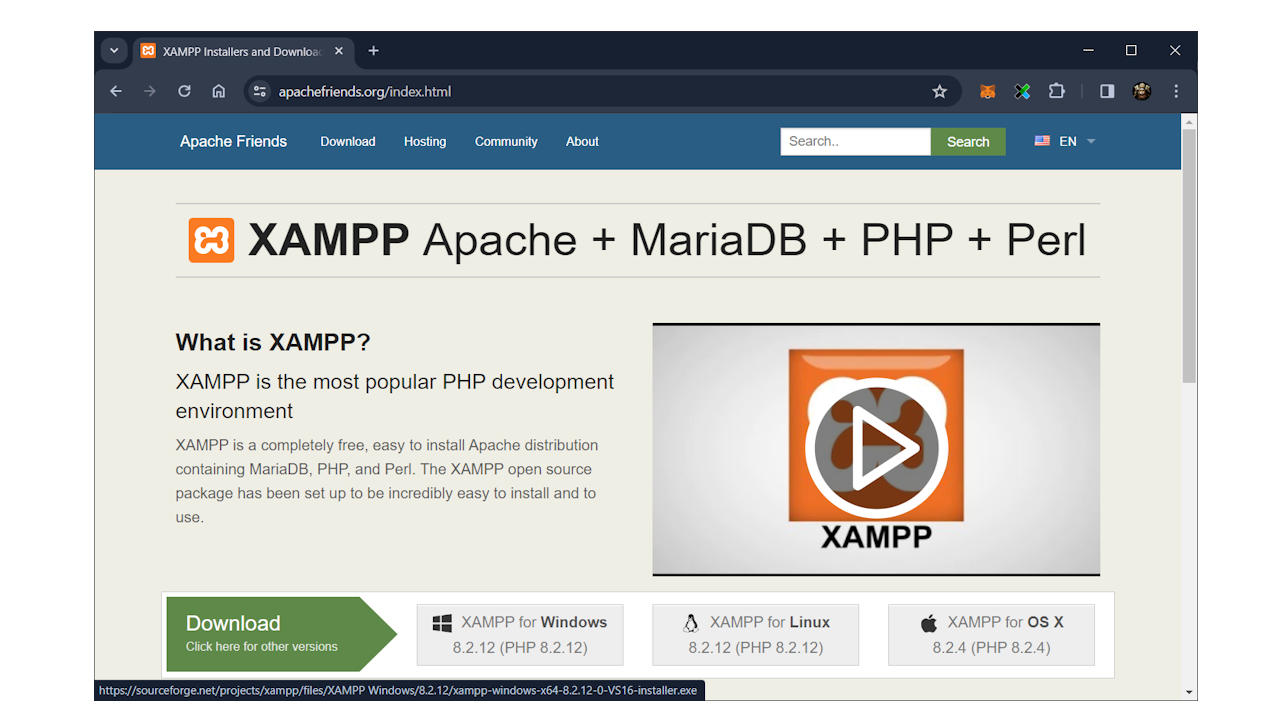
1. Install XAMPP with PHP for Windows

XAMPP is an easy to install free Apache distribution containing MariaDB, PHP and Perl. 

Goto official website, download and install it : 

https://www.apachefriends.org/index.html

2. Add PHP folder to Path Windows Environment Variable

In search bar type "env", click on "Edit the system environment variable" and "Open".


In "System properties" window click on "Environment Variables..." button in right bottom corner.
Than select "Path" environment variant and click "Edit" button.


Make sure path to PHP exists, if not - add it. For example on my computer :
C:\xampp\php

Save and close dialog windows.

3. Test PHP correct setup in Windows Command Prompt ( CMD)

Open Windows command prompt ( cmd ) 


Type following command and press Enter button on keyboard : 

php -version


4. Install Paint.Net for Windows

Download and install Pain.Net from afficial website.


5. Write PHP script to open image using Paint.Net protocol

Create file on Desktop. Name it automation.php.

Paste following code into php file :


<?php
   
    /**
     * Run script :
     *
     * CD C:\Users\Dev\Desktop
     * php automation.php
     */

    $MY_ANIME_IMAGE_PATH = "C:\Users\Dev\Desktop\Yumeko.png";

    openInPaintNet($MY_ANIME_IMAGE_PATH);

    function openInPaintNet( $pathToImage ){
        // Paint.Net protocol
        // https://www.getpaint.net/doc/latest/paintdotnetProtocol.html
        $cmd = "start paintdotnet:\"$pathToImage\"";
        exec($cmd);
    }

?>


Change path to your image !!!. I used Yumeko.png image on Desktop.


6. Run PHP script from Command Prompt ( CMD)

Open new window command prompt.

Type following command and press Enter ( change to your script path ! ):

CD C:\Users\Dev\Desktop

Type following command to run PHP script :

php automation.php

As result PHP should open Paint.Net with image you provided. 


Install VSDC 5.8 Free video editor on Windows

Trabla : Install VSDC 5.8 Free video editor on Windows

Install VSDC 5.8 Free video editor on Windows


VSDC Free Video Editor is a non-linear editing system (NLE) published by Flash-Integro LLC.The program is tailored for editing digital video and audio files in various formats including high-definition and ultra-high-definition resolutions, offering professional post production effects, as well as the ability to export in 4k resolution, capture video from screen, record voice, burn discs, save multimedia files to a number of supported formats and publish them on Facebook, Vimeo, YouTube, Instagram, and Twitter.

Solving:


Watch on YouTube

1. Goto official website http://www.videosoftdev.com/free-video-editor

Install VSDC 5.8 Free video editor on Windows tutorial 1

2. Click on "Download Video Editor x64" button

Install VSDC 5.8 Free video editor on Windows tutorial 2

Install VSDC 5.8 Free video editor on Windows tutorial 3

3. When VSDC download completed in Chrome downloads,
click "Show in folder"

Install VSDC 5.8 Free video editor on Windows tutorial 4

4. Double click on VSDC Free Video Editor installation file video_editor_x64.exe

Install VSDC 5.8 Free video editor on Windows tutorial 5

5. Windows "Open file - Security warning" dialog - click "Run" button

Install VSDC 5.8 Free video editor on Windows tutorial 6

6. VSDC Free Video Editor installation - "Select Setup Language" dialog

- select "English" language
- click on "Ok" button

Install VSDC 5.8 Free video editor on Windows tutorial 7

7. VSDC Free Video Editor installation - "Welcome..." dialog page

click on "Next>" button

Install VSDC 5.8 Free video editor on Windows tutorial 8

8. VSDC Free Video Editor installation - "License Agreement " dialog page

- click on "I accept agreement"

Install VSDC 5.8 Free video editor on Windows tutorial 9


click on "Next>" button

Install VSDC 5.8 Free video editor on Windows tutorial 10

9. VSDC Free Video Editor installation - "Information " dialog page

click on "Next>" button

Install VSDC 5.8 Free video editor on Windows tutorial 11

10. VSDC Free Video Editor installation - "Select Destination Location" dialog page

click on "Next>" button


Install VSDC 5.8 Free video editor on Windows tutorial 12

11. VSDC Free Video Editor installation - "Select Start Menu Folder" dialog page

click on "Next>" button

Install VSDC 5.8 Free video editor on Windows tutorial 13

12. VSDC Free Video Editor installation - "Select Additional Tasks" dialog page

click on "Next>" button

Install VSDC 5.8 Free video editor on Windows tutorial 14

13. VSDC Free Video Editor installation - "Ready to Install" dialog page

click on "Install" button

Install VSDC 5.8 Free video editor on Windows tutorial 15

14. VSDC Free Video Editor installation - "Installing" dialog page

- please wait :)

Install VSDC 5.8 Free video editor on Windows tutorial 16

- almost done :)


Install VSDC 5.8 Free video editor on Windows tutorial 17


15. VSDC Free Video Editor installation - "Completing installation" dialog page

click on "Finish" button


Install VSDC 5.8 Free video editor on Windows tutorial 18


Hooray !!! :) Enjoy VSDC Free Video Editor 


Install VSDC 5.8 Free video editor on Windows tutorial 19

Install VSDC 5.8 Free video editor on Windows tutorial 20

Install VSDC 5.8 Free video editor on Windows tutorial 21

VSDC Free video editor - Blank project creation dialog

Install VSDC 5.8 Free video editor on Windows tutorial 22

Install VSDC 5.8 Free video editor on Windows tutorial 23

Install VSDC 5.8 Free video editor on Windows tutorial 24

Install VSDC 5.8 Free video editor on Windows tutorial 25

Install VSDC 5.8 Free video editor on Windows tutorial 26

Install VSDC 5.8 Free video editor on Windows tutorial 27

Install VSDC 5.8 Free video editor on Windows tutorial 28

How to setup Unix-like zip / unzip in Windows command prompt ( CMD )

Trabla : How to setup Unix-like zip / unzip in Windows command prompt ( CMD )

How to setup Unix-like zip / unzip in Windows command prompt ( CMD )

In this tutorial we will show how to to setup Unix-like zip / unzip in Windows command prompt ( CMD ) using open source archiving tool.

Solving:


Watch on YouTube

1. Download zip / unzip tools from following web-site :
http://stahlworks.com/dev/index.php?tool=zipunzip

How to setup Unix-like zip / unzip in Windows command prompt ( CMD ) tutorial 1

How to setup Unix-like zip / unzip in Windows command prompt ( CMD ) tutorial 2

How to setup Unix-like zip / unzip in Windows command prompt ( CMD ) tutorial 3

How to setup Unix-like zip / unzip in Windows command prompt ( CMD ) tutorial 4

2. Create folder zip_unzip on disk C e.g. C:\zip_unzip

How to setup Unix-like zip / unzip in Windows command prompt ( CMD ) tutorial 5

How to setup Unix-like zip / unzip in Windows command prompt ( CMD ) tutorial 6

How to setup Unix-like zip / unzip in Windows command prompt ( CMD ) tutorial 7


3. Copy files zip.exe and unzip.exe into C:\zip_unzip folder

How to setup Unix-like zip / unzip in Windows command prompt ( CMD ) tutorial 8


4. Add folder C:\zip_unzip to Path environment variable

How to setup Unix-like zip / unzip in Windows command prompt ( CMD ) tutorial 9

- click on windows "Start" button
- right mouse button click on "Computer"
- click on "Properties"

How to setup Unix-like zip / unzip in Windows command prompt ( CMD ) tutorial 10

- click on "Advanced system settings"

How to setup Unix-like zip / unzip in Windows command prompt ( CMD ) tutorial 11

- click on  "Advanced" tab
- click on "Environment Variables..."

How to setup Unix-like zip / unzip in Windows command prompt ( CMD ) tutorial 12

- click on "Path" variable
- click on "Edit" button

How to setup Unix-like zip / unzip in Windows command prompt ( CMD ) tutorial 13

- add to "Variable value" text field following string:    C:\zip_unzip;
- click Ok button, and close all previous dialogs

5. Now let's do Testing :

How to setup Unix-like zip / unzip in Windows command prompt ( CMD ) tutorial 14

- Run windows command prompt ( cmd )

How to setup Unix-like zip / unzip in Windows command prompt ( CMD ) tutorial 15

- type in windows cmd "zip" and press enter

How to setup Unix-like zip / unzip in Windows command prompt ( CMD ) tutorial 16

- type in windows cmd "unzip" and press enter

Hooray !!! :) Well done !!!