Showing posts with label Telegram. Show all posts

How to create Telegram Public Group in Telegram Desktop App

How to create Telegram Public Group in Telegram Desktop App Tutorial

How to create Telegram Public Group Tutorial

Telegram is a free and open source, cross-platform, cloud-based instant messaging (IM) software. This service also provides end-to-end encrypted video calling, VoIP, file sharing and several other features.

Solving :


ATTENTION : We can create Public Telegram Group ONLY in Telegram Desktop 

1. Download and install Telegram Desktop App 

from official website https://desktop.telegram.org/

Download and install Telegram Desktop App from official website

2. Login into Telegram Desktop App via phone verification process

Start Telegram Desktop App

Login into Telegram Desktop App via phone verification process

3. Click on menu button in upper left corner and select "New Group"

Click on menu button in upper left corner

Click on menu button in upper left corner and select New Group

4. Type your New Group name, for example "My Epic Group" and click "Next" button

Type your New Group name, for example "My Epic Group" and click "Next" button

5. Select contacts to be added into Telegram group ( minimum 1 person ) and click "Create" button

Select contacts to be added into Telegram group ( minimum 1 person ) and click "Create" button

6. Select your newly created group in contacts list


New Telegram group created

7. Click on group settings button in the upper right corner and select "Manage Group" menu item

Click on group menu in upper right corner and select Manage Group


8. In the "Edit Group" dialog window find "Group Type" setting. By default it is set to "Private". Click on "Private" link.

Click on private group type link


9. In the "Group Type" sub-dialog window enable checkbox "Public Group".

enable checkbox public group


10. Now we see "Link" field available. It's mandatory to setup. Type your group link, for example - MyEpicGroup. You can use a-z A-Z chars, 0-9 numbers and underscore in the group name. Backspace is not allowed.

New field Link is available

Enter Telegram Public Group Link


11. Make sure Telegram shows "This link is available" message

Make sure link is available

12. Click on "Save" button in the "Group Type" sub-dialog

13. Click on "Save" button in the "Edit Group" dialog

Click Save button in Public Telegram group dialog

Awesome !!! We just create new Epic Public Telegram Group :) Well done.

How to transfer Litecoin from Telegram LTC Bot to Electrum-LTC wallet

Trabla : How to transfer Litecoin from Telegram LTC Click Bot  to Electrum-LTC wallet


How to transfer Litecoin from Telegram LTC Click Bot  to Electrum-LTC wallet tutorial


In this tutorial we will show how to transfer Litecoin ( LTC ) from Telegram LTC Click Bot to Electrum-LTC desktop wallet. Before we start small explanation what is Telegram LTC Click Bot and Electrum-LTC wallet.

Telegram LTC Click Bot 


Telegram LTC Click Bot - is Telegram application, which provide Paid to click ( PTC ) service.
Users are paid in Litecoins ( LTC ) for visiting websites / telegram channels.

Minimum withdrawal amount - 0.0004 LTC ( 40,000 litoshi )

Registration link - https://t.me/Litecoin_click_bot?start=UHjs

Telegram LTC Click Bot

Efficient strategy to use LTC Click Bot


Just visit 5-10 websites  once / twice a day.
High rewards visit are always first.

Telegram LTC Click Bot High and Low Rewards example

Electrum-LTC Wallet


Electrum-LTC Wallet - is a simple, but powerful Litecoin wallet for Windows desktop.
Electrum-LTC is a community-maintained port of Electrum, the Bitcoin wallet, to Litecoin.

Official website - https://electrum-ltc.org/

Electrum-LTC wallet official website

Electrum-LTC wallet in Windows 10

Solving :


Watch on LBRY Watch on YouTube


1.  Open Telegram LTC Click Bot 

Open Telegram LTC Click Bot


2.  Click on Balance menu button

Click on Balance menu button

You will see "Balance" menu

Telegram LTC Click Bot balance menu


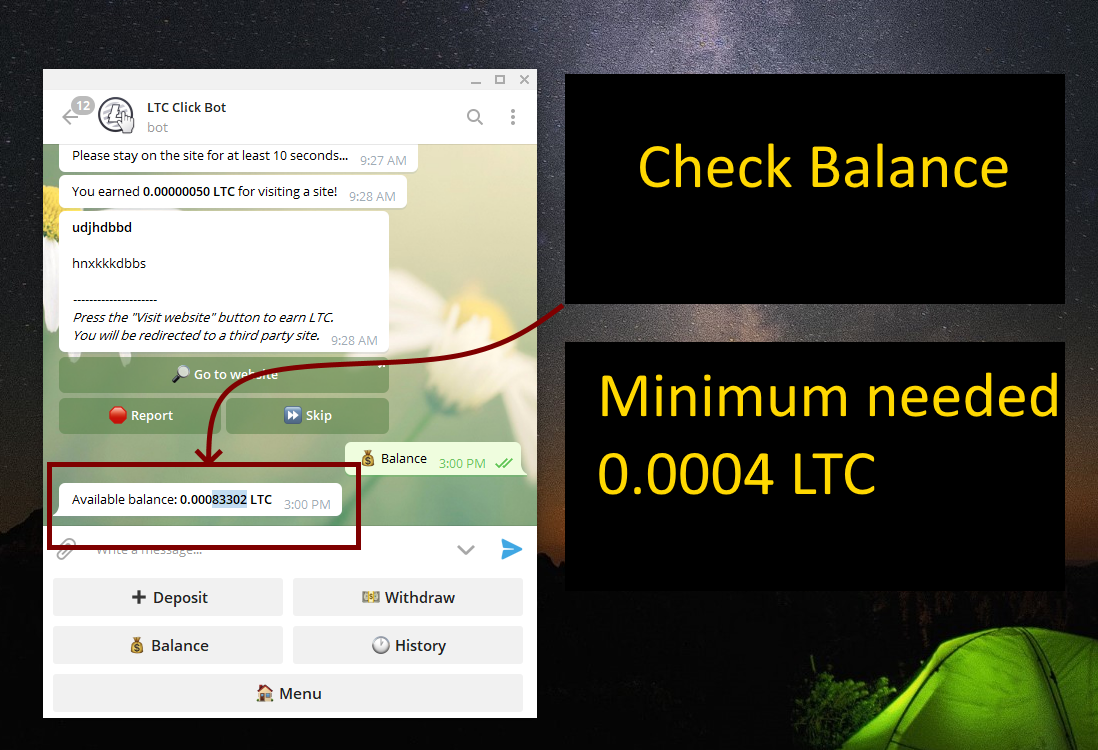
3. Make sure you have enough funds to withdraw
Minimum withdrawal amount - 0.0004 LTC ( 40,000 litoshi )

Check balance in Telegram LTC Click Bot


4. Click on Withdraw menu item

Click on Withdraw menu item

Telegram LTC Click Bot will ask you to enter LTC Address of your wallet

Telegram LTC Click Bot will ask you to enter LTC Address of your wallet


5. To get LTC Address open Electrum-LTC wallet

To get LTC Address open Electrum-LTC wallet


Electrum-LTC Wallet


6. Click on tab "Receive" in Electrum-LTC wallet

Click on tab "Receive" in Electrum-LTC wallet

Electrum-LTC receive tab


7. Copy LTC Withdrawal Address ( click on "copy" blue button )

Copy LTC Withdrawal Address ( click on "copy" blue button )

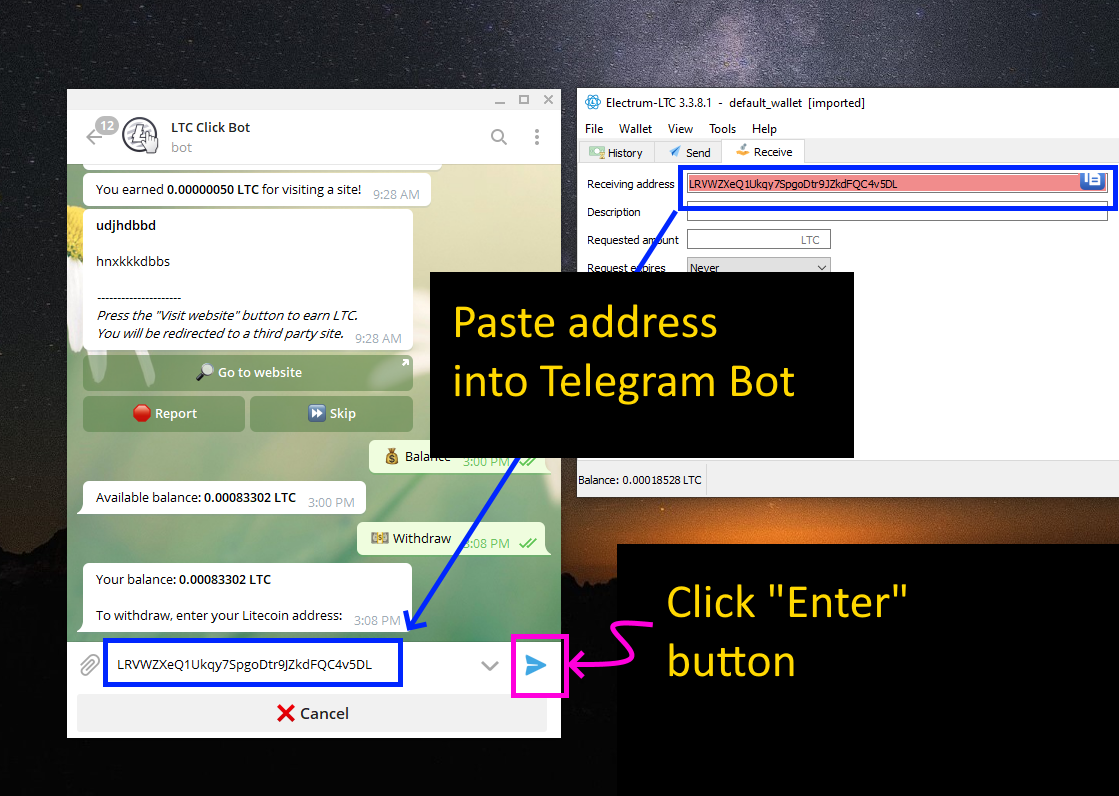
8. Paste withdrawal address into Telegram LTC Click Bot
+ click "Enter" button

aste withdrawal address into Telegram LTC Click Bot

Than Bot will ask you to enter withdraw amount

Bot will ask you to enter withdraw amount

9. Type amount to withdrawal ( copy balance value )
+ click "Enter" button

Type amount to withdrawal ( copy balance value )


10. Confirm withdrawal by clicking "Confirm" button

Confirm withdrawal by clicking "Confirm" button


Hooray !!! We successfully  transferred Litecoin ( LTC )
from Telegram LTC Click Bot into Electrum-LTC Wallet

( transfer delay  ~ 10 - 30 min, depends on network load )


How to install Telegram on Kali Linux

Trabla : How to install Telegram on Kali Linux


How to install Telegram on Kali Linux

Telegram is a non-profit cloud-based instant messaging service. Telegram client apps exist for Android, iOS, BlackBerry 10, Windows Phone, Windows NT, macOS and Linux. Users can send messages and exchange photos, videos, stickers, audio and files of any type.

Telegram Official Site - https://telegram.org/

Solving: