Trabla: Install SugarCRM 6.5.23 Community Edition on Windows via XAMPP 5.6.21 ( with sample data )
SugarCRM - a customer relationship management (CRM) system that is available in both open-source and commercial open-source applications.
Sugar's functionality includes sales-force automation, marketing campaigns, customer support, collaboration, Mobile CRM, Social CRM and reporting.
In February 2014, SugarCRM announced that they would no longer be releasing new open-source versions of their Community Edition application; from now on this would be a bug-fix-only application.
Solving:
1. Download and install
XAMPP 5.6.21 from official site:
https://www.apachefriends.org/download.html
2. Download
SugarCRM 6.5.23 installer from official site:
http://www.sugarcrm.com/download
3. Create folder \
sugarcrm in XAMPP htdocs folder
C:\xampp\htdocs\sugarcrm
and copy all files from downloaded
SugarCRM 6.5.23 .zip source
4. Run
XAMPP Control Panel
- increase max_execution_time to 900 (default is 30 ) in php.ini
( Apache -> Config -> php.ini )
- start Apache
- start Database
5. Open in browser following url to start
SugarCRM 6.5.23 installation
http://localhost/sugarcrm
Click "
Next"
6. "
Are you ready to install?" page - scroll down, click "
Next" button.
7. "
License Acceptance" page
- enable checkbox "
Accept"
- click "
Next" button
8. "
Installation Options" page - choose "
Typical Install" and click "
Next"
9. "
Database Type" page - click "
Next" button
10. "
Database Configuration" page
- Database name -
sugarcrm
- Host Name -
localhost
- Database Administrator Username -
root
- Database Administrator password - leave empty ( default settings in XAMPP )
- Sugar Database Username - Same as Administrator
- Populate Database with demo data -
yes
- Click "
Next" button
11. "
Site Configuration" page
- enter your site admin credentials and click "
Next"
12. "
Confirm Settings" page - scroll down, click "
Next" button
13. "
Perform Setup" page - click "
Next" button.
14. "
Product registration (optional) " - click "
Next" button.
15. Hooray!!! Install done - now login as admin - need to do some post-install steps.
16. "
Welcome to Sugar" page - click "
Next"
17. "
Branding" page - make changes if needed and click "
Next"
18. "
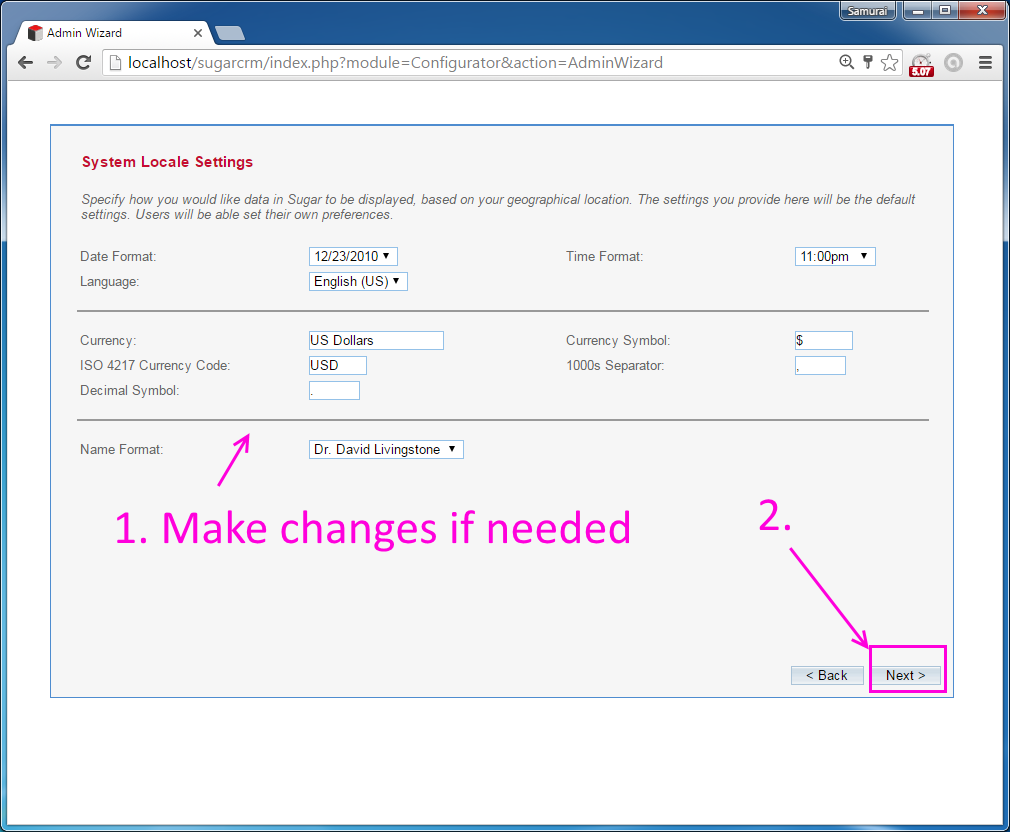
System Locale Settings" page - make changes if needed and press "
Next" button
19. "
SMTP Server Specification" page
- disable checkbox "
Use SMTP Authentification?"
- click "
Continue" button.
20. "
Your Information" page - type some data and click "
Next" button
21. "
Your Locale" page - change if needed and click "
Next" button
22. "
You are ready to use Sugar!" page - click "
Finish"
Enjoy SugarCRM !!!