Trabla: Install SuiteCRM 7.7.6 on windows 7 x64 localhost ( XAMPP 5.6.24 ) - open source PHP customer relationship management ( CRM ) system
SuiteCRM is a software fork of the popular customer relationship management (CRM) system SugarCRM. It became popular when SugarCRM decided to stop development of its open source version. It is a free and open source alternative application, and is based on the last open-source release, but ships with additional modules.
SuiteCRM won the BOSSIE Award 2015 for the world's best Open Source CRM. Inforworld, the curators of the BOSSIE awards stated that "In little more than a year, SuiteCRM has inspired the community and emerged as a new leader in open source CRM." The award had been won by SugarCRM for the previous 8 years
Solving:
1. Download and install
XAMPP 5.6.24 from official site:
https://www.apachefriends.org/download.html
2. Download
SuiteCRM 7.7.6 installer from official site:
https://suitecrm.com
3. Create folder
\suitecrm in XAMPP htdocs folder
C:\xampp\htdocs\suitecrm
and copy all files from downloaded
SuiteCRM 7.5.3 .zip source
4. Run
XAMPP Control Panel
- open
php.ini file (
Apache -> Config-> PHP(php.ini) )
- change
max_execution_time value
from
max_execution_time=30 to
max_execution_time=600
- uncomment ( remove semicolon )
imap extension
from
;extension=php_imap.dll to
extension=php_imap.dll
- change value of
upload_max_filesize
from
2M to
10M
- save & close
php.ini
- start
Apache
5. Open in browser following url to start
SuiteCRM 7.7.6 web installation
http://localhost/suitecrm/install.php
"Welcome" page of SuiteCRM 7.7.6 web installation
- enable checkbox "
Accept"
- click "
Next" button.
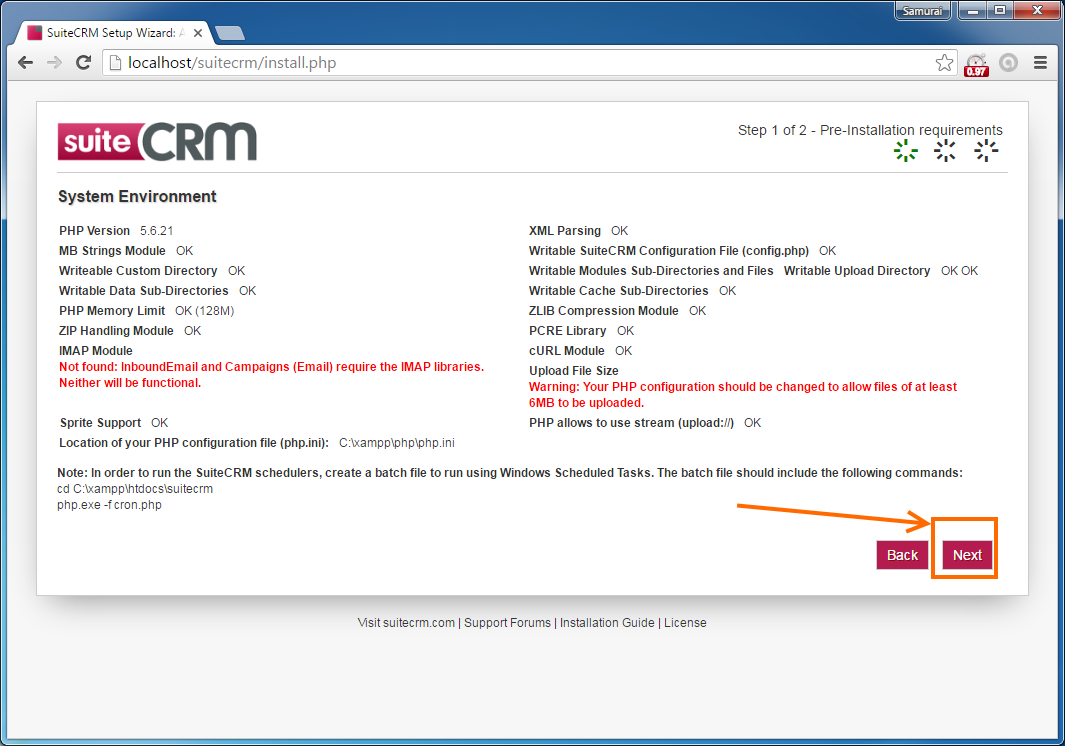
6. "
System Environment" page
of SuiteCRM 7.7.6 web installation
- click "
Next" button
7. "
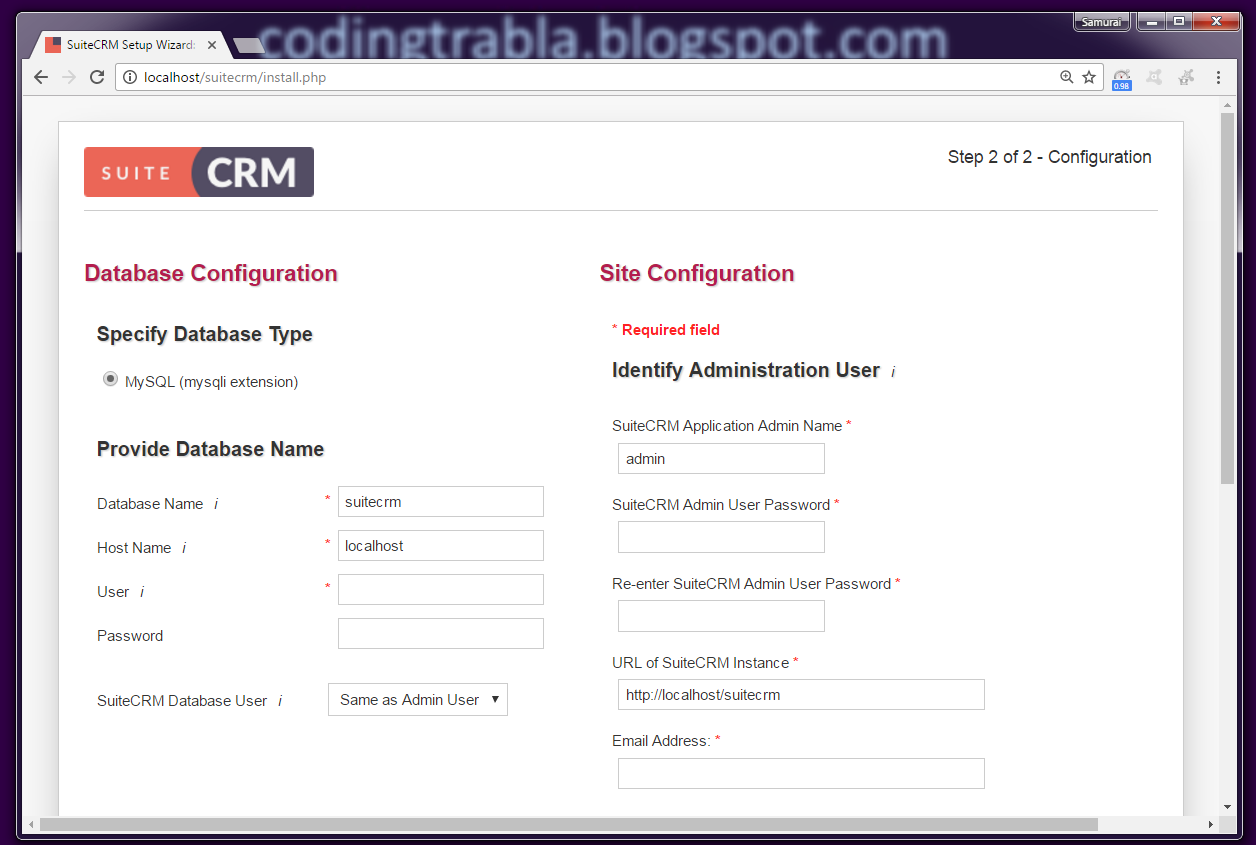
Database and Site Configuration" page
of SuiteCRM 7.7.6 web installation
Now we need to create
Database for
SuiteCRM 7.7.6
1) Open
phpMyAdmin in new browser tab (or window :) ) -
http://localhost/phpmyadmin
2) Open
SQL tab
3) Execute following
query
CREATE DATABASE `suitecrm`
DEFAULT CHARACTER SET utf8 COLLATE utf8_general_ci;
CREATE USER 'suitecrm-owner'@'localhost';
CREATE USER 'suitecrm-owner'@'127.0.0.1';
CREATE USER 'suitecrm-owner'@'::1';
SET PASSWORD
FOR 'suitecrm-owner'@'localhost' = PASSWORD('suitecrm123$%');
SET PASSWORD
FOR 'suitecrm-owner'@'127.0.0.1' = PASSWORD('suitecrm123$%');
SET PASSWORD
FOR 'suitecrm-owner'@'::1' = PASSWORD('suitecrm123$%');
GRANT ALL PRIVILEGES ON
`suitecrm`.* TO 'suitecrm-owner'@'localhost' WITH GRANT OPTION;
GRANT ALL PRIVILEGES ON
`suitecrm`.* TO 'suitecrm-owner'@'127.0.0.1' WITH GRANT OPTION;
GRANT ALL PRIVILEGES ON
`suitecrm`.* TO 'suitecrm-owner'@'::1' WITH GRANT OPTION;
Go back to
SuiteCRM 7.7.6 installation page
- type
Database Name -
suitecrm
- type
Host Name -
localhost
- type
User -
suitecrm-owner
- type
Password - suitecrm123$%
- type your
Administration User data
-
scroll down
- click on "
Choose Demo Data"
- select "
Yes" in "
Populate Database with Demo Data"
- click "
Next" button
8. Installing ....
9. Hooray !!!
SuiteCRM 7.7.6 login page ( almost ready )
10. Post-installation step - config
scheduler for
SuiteCRM 7.7.6 cron.php
using
Windows Scheduled Tasks
- create folder
C:\scheduled-tasks
- create text file
SuiteCRM-cron.txt in folder
C:\scheduled-tasks
- edit file
SuiteCRM-cron.txt, copy & paste following text + save file
CD C:\xampp\htdocs\suitecrm
C:\xampp\php\php.exe -f cron.php
- change file extension
from
SuiteCRM-cron.txt to SuiteCRM-cron.bat
- open "
Control Panel" - click Windows "
Start" button, then "
Control Panel"
- double click on "
Administrative Tools" icon
- double click on "
Task Scheduler" icon
- in "
Task Scheduler" windows click on "
Create Basic Task..." wizard button
- "
Create Basic Task Wizard" screen "
Create Basic Task"
- type
name "
SuiteCRM Cron"
- click "
Next" button
- "
Create Basic Task Wizard" screen "
Trigger Task"
- select "
daily"
- click "
Next" button
- "
Create Basic Task Wizard" screen "
Daily"
- set time (
10 PM is used in tutorial )
- set frequency - "
Recur every" -
1 days ( will be executed every day )
- click "
Next" button
- "
Create Basic Task Wizard" screen "
Action"
- select "
Start a program"
- click "
Next" button
- "
Create Basic Task Wizard" screen "
Start a Program"
- click "
Browse" button
- select file "
C:\scheduled-tasks\SuiteCRM-cron.bat
and click "
Open"
- click "
Next" button
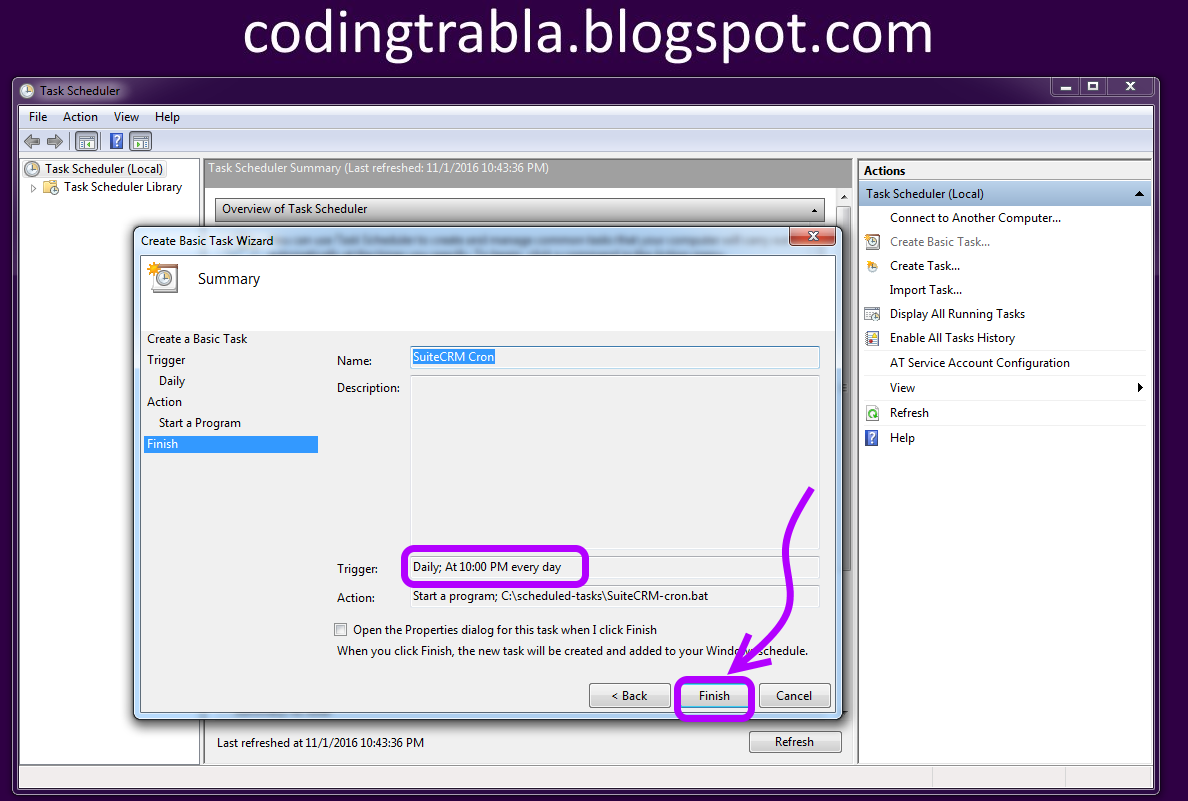
- "
Create Basic Task Wizard" screen "
Finish"
- click "
Finish" button
Hooray !!! :) Enjoy SuiteCRM 7.7.6 - customer relationship management software !!!!