Trabla: TestLink: install testlink on windows
TestLink is a web-based test management system that facilitates software quality assurance. It is developed and maintained by Teamtest. The platform offers support for test cases, test suites, test plans, test projects and user management, as well as various reports and statistics.
https://en.wikipedia.org/wiki/TestLink
Latest Tutorial - Install TestLink 1.9.15 Tauriel on windows 7 x64 localhost ( XAMPP 5.6.24 ) - open source PHP Test Management
Environment:
OS: windows x64
XAMPP version 5.6.19
PHP 5.6.19
DB - MariaDB
Solving:
1. Download XAMPP - php development environment for windows
https://www.apachefriends.org/index.html
2. Run XAMPP installer
.....
3. Create "
testlink" folder in
C:\xampp\htdocs
4. Download TestLink sources from SourceForge
https://sourceforge.net/projects/testlink/?source=typ_redirect
5. Unzip TestLink archive
and copy files into folder
C:\xampp\htdocs\testlink
6. Open XAMPP control panel
-
start Apache
-
start MySQL
NOTE: !!! close
Skype application before starting apache - Skype uses 80 port by default, needed for apache. So quit Skype, start Apache, open Skype.
7. Open in browser web-client of database
- we need to create database "testlink"
http://localhost/phpmyadmin/
8. Create
new database - press "New" button
Name -
testlink
Encoding -
utf8-general-ci
+ click button "Create"
9. Open in browser url -
http://localhost/testlink
You will be redirected to testlink installation page
Click "Install" to start installation process.
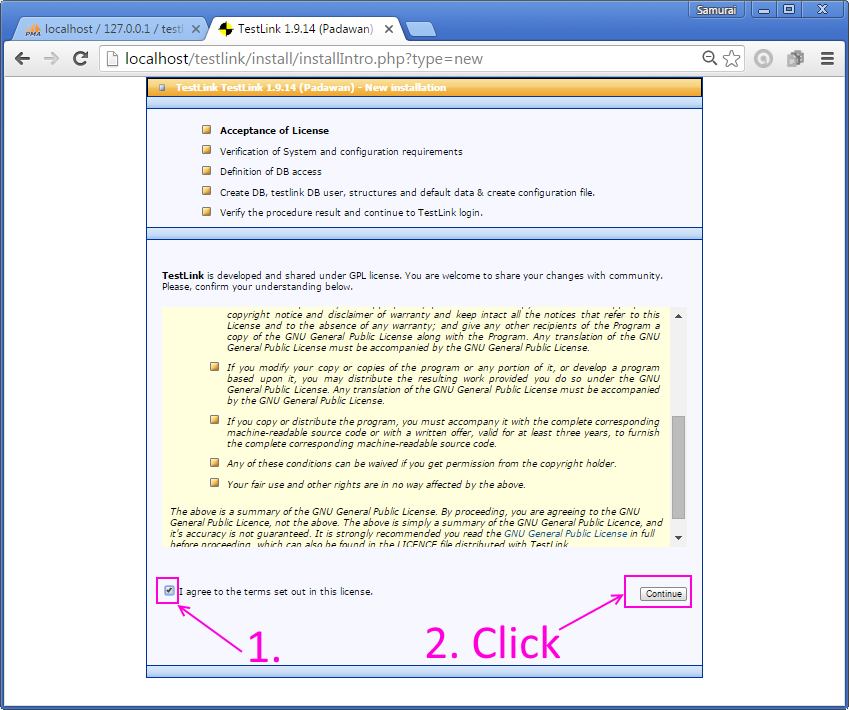
10. Accept license and click "
Continue"
11. On "
Verification of System and configuration requirements"
page we see some errors to fix
Fixing Errors:
11.1 "
Checking if /var/testlink/logs/ directory exists [S] Failed!"
and
"
Checking if /var/testlink/upload_area/ directory exists [S] Failed!"
11.1.1 Create file custom_config.inc.php in testlink folder
Example:
C:\xampp\htdocs\testlink\custom_config.inc.php
11.1.2 Copy following code into file C:\xampp\htdocs\testlink\custom_config.inc.php
<?php
/**
* @var string Path to store logs -
* for security reasons (see http://itsecuritysolutions.org/2012-08-13-TestLink-1.9.3-multiple-vulnerabilities/)
* put it out of reach via web or configure access denied.
*/
$tlCfg->log_path = 'C:\\xampp\\htdocs\\testlink\\logs\\';
/**
* TL_REPOSITORY_TYPE_FS: the where the filesystem repository should be located
* We recommend to change the directory for security reason.
* (see http://itsecuritysolutions.org/2012-08-13-TestLink-1.9.3-multiple-vulnerabilities/)
* Put it out of reach via web or configure access denied.
*
**/
$g_repositoryPath = 'C:\\xampp\\htdocs\\testlink\\upload_area\\';
?>
11.1.2 Reload installation page in browser to see if problem fixed
e.g.
http://localhost/testlink/install/installCheck.php?licenseOK=on
All is OK. This trabla fixed. Moving forward.
11.2 Fixing - "
Maximum Session Idle Time before Timeout 24 minutes and 0 seconds - (Short. Consider to extend.)"
and
"
Checking max. execution time (Parameter max_execution_time) 30 seconds - We suggest 120 seconds in order to manage hundred of test cases (edit php.ini)"
11.2.1 Open XAMPP control panel - click "
Config" button in Apache row - select
php.ini
11.2.2 Find in file
php.ini string "
max_execution_time"
11.2.3 Replace value
from 30 to 120
11.2.4 Find in file
php.ini string "
session.gc_maxlifetime"
11.2.5 Replace value
from 1440 to 65535 ( in seconds, max possible )
11.2.6 Save file after changes and close it.
In XAMPP control panel - "
stop" than "
start"
apache to get new php.ini to work.
11.2.7 Reload installation page in browser to check if problem solved.
http://localhost/testlink/install/installCheck.php?licenseOK=on
Fixed. Greate :).
12. Continue installation - click "Continue" button
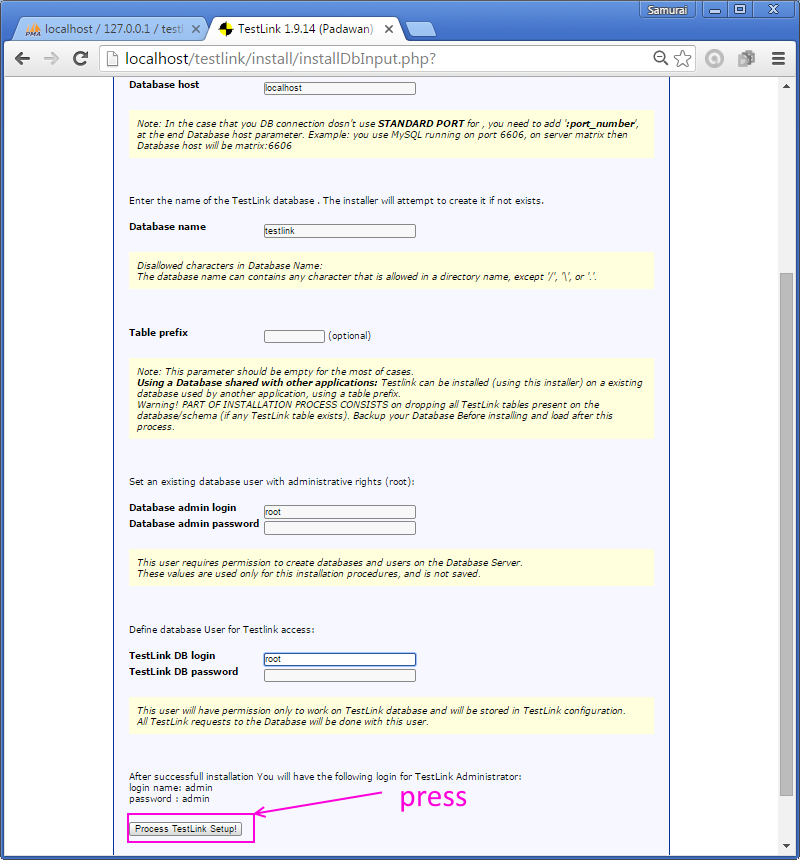
13. "
Database configuration" page.
Type db name - "
testlink" (we created earlier )
Type into field "Database admin login" - "
root".
Type into field "TestLink DB login" - "
root"
Leave passowrds fields empty - by default when we install XAMPP user login is "root"
without password
14. Press button "
Process TestLink Setup!"
15. Oops, yet another error - "
You need to enter your TestLink database password (For Security empty password is not allowed ) "
15.1 Fixing password error - we will create password for user "root".
Open
http://localhost/phpmyadmin/index.php - php MySQL web client in browser
15.2 Go to sql tab and xecute following command
SET PASSWORD = PASSWORD('samuraikit');
15.3 Reload phpmyadmin page. Oops :) - MySQL said - "
Cannot connect: invalid settings."
15.4 To fix phpmyadmin - open config file and set new password.
Path C:\xampp\phpMyAdmin
File
C:\xampp\phpMyAdmin\config.inc.php
15.5 Reload phpmyadmin page - check if all is ok.
16. Back to the testlink installation -
http://localhost/testlink/install/installDbInput.php?
type login - "
root" and password "
samuraikit"
17. Hooray - yet another error ))))
18. Fixing - open XAMPP control panel - Apache row - config - php.ini
In php.ini find
;;extension=php_mysql.dll
replace with
extension=php_mysql.dll
and save file.
19.
Stop ,than
start apache in XAMPP control panel. and go to installation page in browser
http://localhost/testlink/install/installNewDB.php
Hooray!!!
18. Check database if all is ok
19. Goto testlink login page - type login /password - "
admin"/"
admin"
http://localhost/testlink/login.php
Superb!!! :)))
20. Final step -
delete TestLink install folder in xampp
C:\xampp\htdocs\testlink\install