Showing posts with label intellijidea. Show all posts

How to change active tab color IntellijIDEA

Trabla : How to change active tab color IntellijIDEA


How to change active tab color IntellijIDEA

IntelliJIDEA is a Java integrated development environment (IDE) for developing computer software. It is developed by JetBrains (formerly known as IntelliJ), and is available as an Apache 2 Licensed community edition, and in a proprietary commercial edition. Both can be used for commercial development.

Solving:


IntelliJ IDEA 2016.3.7 & GO lang : how to install golang plugin, create and run simple project

Trabla IntelliJ IDEA 2016.3.7 & GO lang : how to install golang plugin, create and run simple project


IntelliJ IDEA 2016.3.7 & GO lang : how to install golang plugin, create and run simple project

Go (often referred to as golang) is a programming language created at Google in 2009 by Robert Griesemer, Rob Pike, and Ken Thompson.It is a compiled, statically typed language in the tradition of Algol and C, with garbage collection, limited structural typing, memory safety features and CSP-style concurrent programming features added. The compiler and other language tools originally developed by Google are all free and open source.

GoLang Official Site  - https://golang.org/

Solving:


How to Creating a New Spring Boot Project in IntelliJ Idea and Spring Initilizr

Trabla: How to Creating a New Spring Boot Project in IntelliJ Idea and Spring Initilizr


How to Creating a New Spring Boot Project in IntelliJ Idea and Spring Initilizr


Solving:


How to install intellij idea on windows 10

Trabla: How to install intellij idea on windows 10


How to install intellij idea on windows 10

IntelliJ IDEA (pronounced /ɪnˈtɛlɪdʒeɪ aɪˈdɪə/) is a Java integrated development environment (IDE) for developing computer software. It is developed by JetBrains (formerly known as IntelliJ), and is available as an Apache 2 Licensed community edition, and in a proprietary commercial edition. Both can be used for commercial development.
Official Site - https://www.jetbrains.com/idea/

Solving:


GO & intellijidea 2016: create GO project in intellij idea

Trabla: GO & intellijidea 2016: create and run GO project in intellij idea


GO & intellijidea 2016: create GO project in intellij idea

This tutorial explains how to create first GO lang project in Intellij IDEA 2016.1 an run it ( on windows OS).


Solving:

1. Install Go lang 1.6 for Windows


install Golang 1.6 on windows 7


https://codingtrabla.blogspot.com/2016/03/go-install-golang-on-windows.html

2. Install Go lang plugin for Intellij IDEA 2016.1,
detailed tutorial here:

install golang plugin in intellij idea


https://codingtrabla.blogspot.com/2016/03/intellijidea-20161-install-intellij.html


3.  Run intellij IDEA , click "Create New Project"

GO & intellijidea 2016: create GO project in intellij idea tutorial 1

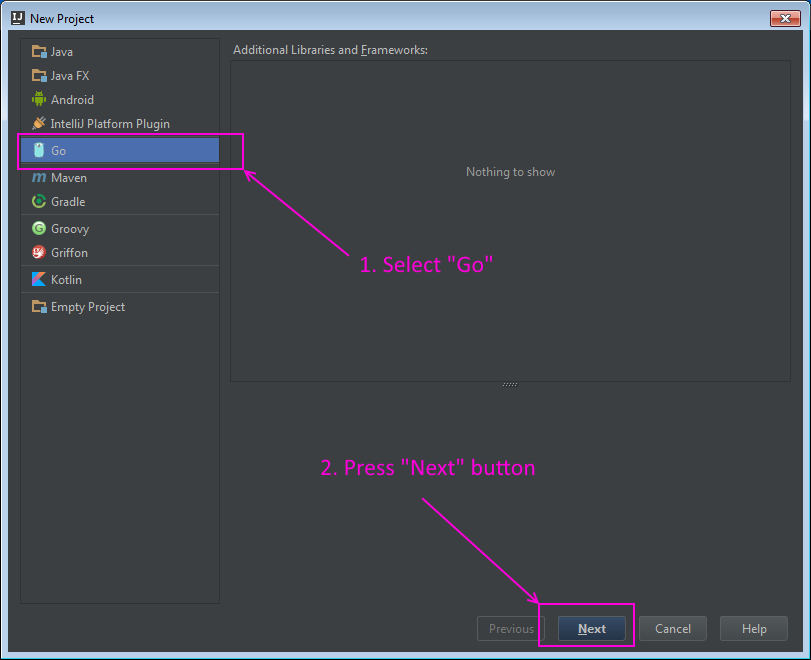
4. In "New Project" dialog windows click on "Go"  and  press "Next" button

GO & intellijidea 2016: create GO project in intellij idea tutorial 2

5. Now we need to select Go SDK - press "Configure" button

GO & intellijidea 2016: create GO project in intellij idea tutorial  3

6. In dialog "Select Home Directory for Go SDK" select directory where Go is installed,
and press "OK" button.
E.g. on my PC - C:\Go

GO & intellijidea 2016: create GO project in intellij idea tutorial 4

7. If Go SDK is detected and all is ok - you will see it on screen - Go icon with version.
Press "Next" button.

GO & intellijidea 2016: create GO project in intellij idea tutorial 5

8. Type project name e.g. GoHelloWorldProject and press "Finish" button.

GO & intellijidea 2016: create GO project in intellij idea tutorial 6

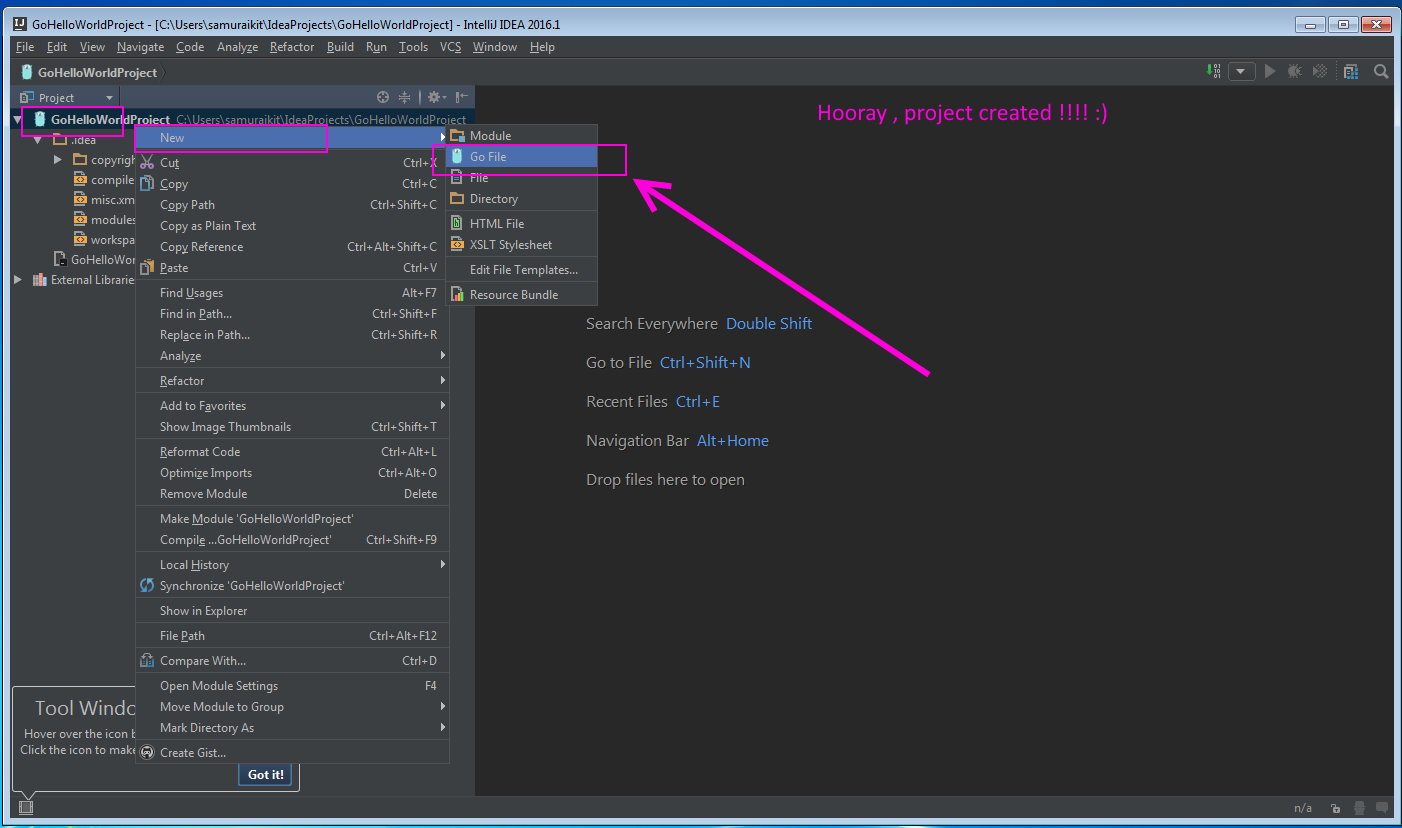
9. Hooray, project created !!!  Create new .go file 
 right mouse click on project -> "New" -> "Go File"


GO & intellijidea 2016: create GO project in intellij idea tutorial 7


10. Type file name - "HelloWorld" and press "OK"

GO & intellijidea 2016: create GO project in intellij idea tutorial 8

11. Now we see error message "GOPATH is empty" - we need to set "GOPATH"

GO & intellijidea 2016: create GO project in intellij idea tutorial 9

12. Add GOPATH - same path as project source folder,
disable checkbox "Use GOPATHdefined in system environment"
and press "Ok" button.

GO & intellijidea 2016: create GO project in intellij idea tutorial 10

13. Now we need to put some code into HelloWorld.go
and setup Run configuration -

https://codingtrabla.blogspot.com/2016/03/go-intellijidea-2016-run-go-project-in.html


GO & intellijidea 2016: run GO project in intellij idea

Trabla: GO & intellijidea 2016: run GO project in intellij idea


GO & intellijidea 2016 run GOlang project in intellij idea


Solving:

1. Create Go lang project - detailed tutorial here:

create Golang project in idea


https://codingtrabla.blogspot.com/2016/03/go-intellijidea-2016-create-go-project.html


2. Let's create hello world code and Run it - delete all from file "HelloWorld.go" and put following code

GO & intellijidea 2016 run GOlang project in intellij idea - tutorial screenshot 1


package main

import "fmt"
func main() {
       fmt.Printf("Hello, world.\n")
}

GO & intellijidea 2016 run GOlang project in intellij idea - tutorial screenshot 2


3. Now we need to create "Run configuration" to build & run HelloWorld.go

In menu click "Run" -> "Run"

GO & intellijidea 2016 run GOlang project in intellij idea - tutorial screenshot 3

4. In "Run" dialog click "Edit configurations..."

GO & intellijidea 2016 run GOlang project in intellij idea - tutorial screenshot 4

5. Click "+" button to add new configuration

GO & intellijidea 2016 run GOlang project in intellij idea - tutorial screenshot 5

6. In "Add New Configuration" dialog - click "Go Application"

GO & intellijidea 2016 run GOlang project in intellij idea - tutorial screenshot 6


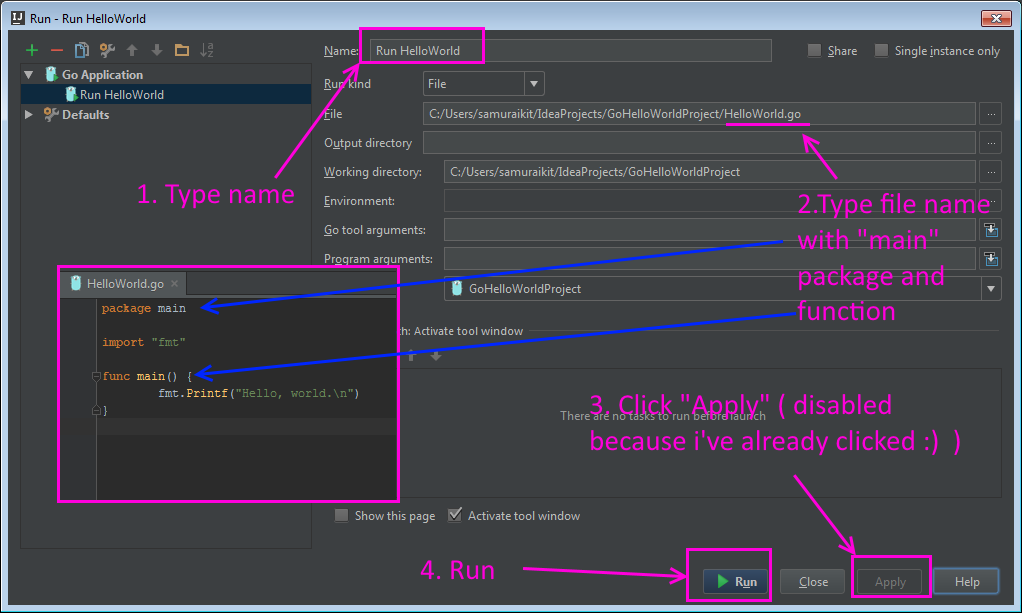
7.  Type run config name,
type file name in project folder with package "main" and fn "main" ( entry point ),
click "Apply" button,
click  "Run" button

GO & intellijidea 2016 run GOlang project in intellij idea - tutorial screenshot 7

8. Hooray :)

GO & intellijidea 2016 run GOlang project in intellij idea - tutorial screenshot 8


intellijidea 2016.1: install intellij IDEA GoLang plugin

Trabla: intellij IDEA 2016.1: install intellij IDEA GoLang plugin


install intellij IDEA 2016.1 GoLang plugin


Solving:


1. Install intellij IDEA 2016.1:
http://codingtrabla.blogspot.com/2016/03/intellij-idea-20161-setup.html

2. Run intellij IDEA 2016.1 - click "Configure" button ,
than click "Plugins"

install intellij IDEA 2016.1 GoLang plugin tutorial 1

3. Click on "All plugins" top menu - select "Custom"

install intellij IDEA 2016.1 GoLang plugin tutorial 2

4. Click  "Browse repositories..." button

install intellij IDEA 2016.1 GoLang plugin tutorial 3

5. Click "Manage repositories.." button in "Browse repositories..." view

install intellij IDEA 2016.1 GoLang plugin tutorial 4

6. in "Custom Plugin Repositories" dialog windows
click + (plus) button to add new repository.

install intellij IDEA 2016.1 GoLang plugin tutorial 5

7. In "Add repository" dialog windows enter following url of repository
and press "OK" button:

https://plugins.jetbrains.com/plugins/alpha/list

install intellij IDEA 2016.1 GoLang plugin tutorial 6

8. In "Custom plugin repositories.." dialog click OK

install intellij IDEA 2016.1 GoLang plugin tutorial 7

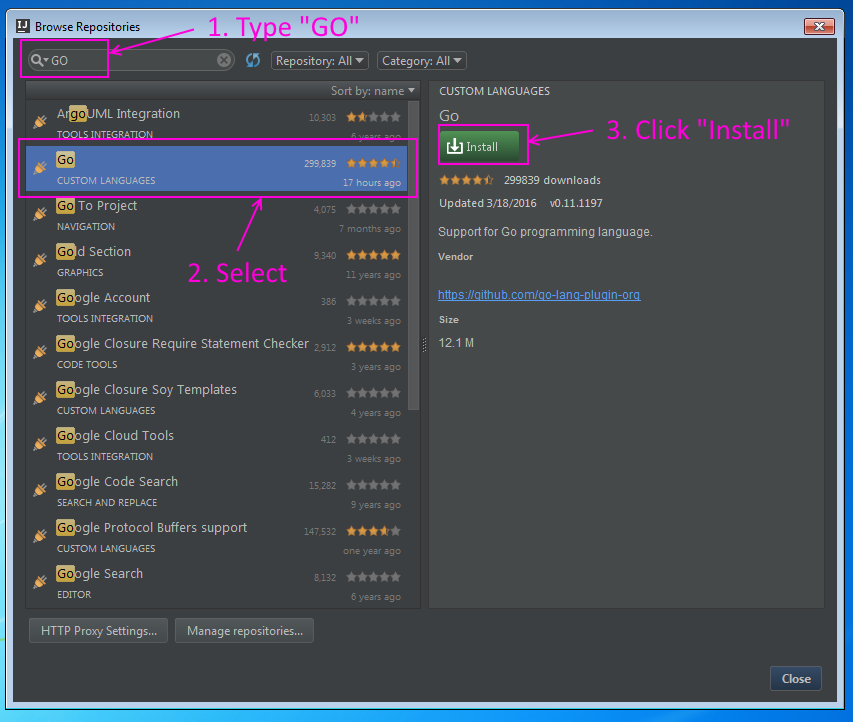
9. In "Browse Repositories" windows
1) type "GO" in search field
2) Select GO lang plugin
3) Click "Install" in right details panel

install intellij IDEA 2016.1 GoLang plugin tutorial 8

10. Installing ...

install intellij IDEA 2016.1 GoLang plugin tutorial 9

 11. Restart IntelliJ IDEA 2016.1

install intellij IDEA 2016.1 GoLang plugin tutorial 10

install intellij IDEA 2016.1 GoLang plugin tutorial 11

12. Done. Hooray !!! :)

install intellij IDEA 2016.1 GoLang plugin tutorial 12


IntelliJ IDEA: 2016.1 setup

Trabla: IntelliJ IDEA: 2016.1 setup


IntelliJ IDEA 2016.1 setup on windows 7


Solving:

1. Goto official IntelliJ IDEA site and click "Download" button
https://www.jetbrains.com/idea/download/#section=windows

IntelliJ IDEA 2016.1 setup on windows 7 tutorial screenshot 1

2.  Run installer

IntelliJ IDEA 2016.1 setup on windows 7 tutorial screenshot 2

IntelliJ IDEA 2016.1 setup on windows 7 tutorial screenshot 3


3. IntelliJ IDEA installation wizard - "Welcome" screen, click "Next" button


IntelliJ IDEA 2016.1 setup on windows 7 tutorial screenshot 4

 4. "Choose Install location" screen - click "Next" button

IntelliJ IDEA 2016.1 setup on windows 7 tutorial screenshot 5

5. "Installation Options" screen - click "Next" button

IntelliJ IDEA 2016.1 setup on windows 7 tutorial screenshot 6

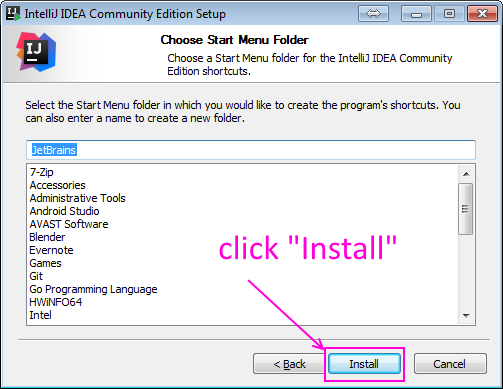
6. "Choose Start Menu Folder" screen - click "Install" button

IntelliJ IDEA 2016.1 setup on windows 7 tutorial screenshot 7


7. Installation in progress ...

IntelliJ IDEA 2016.1 setup on windows 7 tutorial screenshot 8

8. "Finish" screen - click "Finish" button.

IntelliJ IDEA 2016.1 setup on windows 7 tutorial screenshot 9

9. Run IntelliJ IDEA: 2016.1 - first start dialog

IntelliJ IDEA 2016.1 setup on windows 7 tutorial screenshot 10

10. Accept privacy policy

IntelliJ IDEA 2016.1 setup on windows 7 tutorial screenshot 11

11. Select dark UI theme and click button

IntelliJ IDEA 2016.1 setup on windows 7 tutorial screenshot 12


12. Starting app

IntelliJ IDEA 2016.1 setup on windows 7 tutorial screenshot 13


13. Done. Hooray !!! :)

IntelliJ IDEA 2016.1 setup on windows 7 tutorial screenshot 14