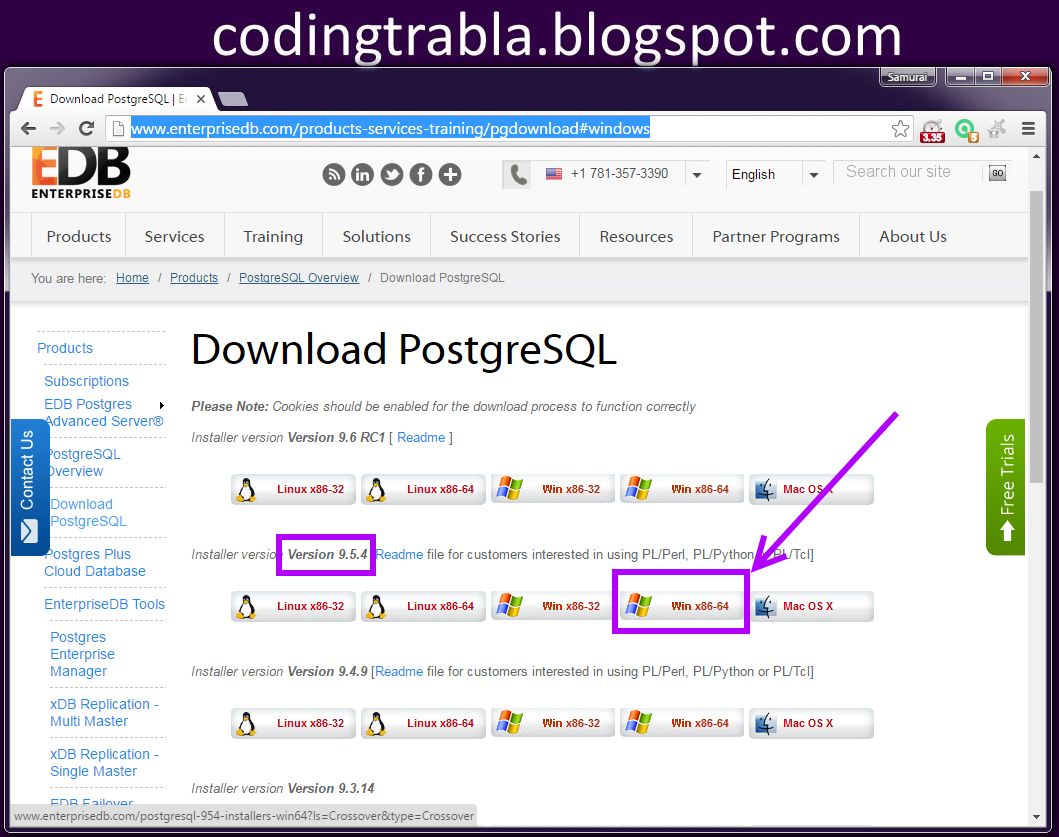
Trabla: Install Moodle 3.1.1+ with PostgreSQL 9.5.4 on Windows 7x64 - Part 3/3
Moodle is a
free and
open-source software learning management system written in
PHP and distributed under the GNU General Public License. Developed on pedagogical principles, Moodle is used for blended learning, distance education, flipped classroom and other e-learning projects in schools, universities, workplaces and other sectors.
With customizable management features, it is used to create private websites with online courses for educators and trainers to achieve learning goals. Moodle (acronym for modular object-oriented dynamic learning environment) allows for extending and tailoring learning environments using community sourced plugins.
Latest Tutorial - Install Moodle 3.2.1 via Bitnami installer on Windows 7 localhost
Solving - Part 3/3 ( Part 1 , Part 2 ):
9. "
Database settings" page of
Moodle 3.1.1+ e-learning web installation
Now we need to create
Database for
Moodle 3.1.1+ e-learning PostgreSQL 9.5.4
- Open
pgAdmin III -
PostgreSQL 9.5.4 database GUI client
( included in PostgreSQL installation )
- In
pgAdmin do following steps:
1) double click on "PostgreSQL 9.5 ( localhost:5432)"
2) In "Connect to server" dialog - type superuser (postgres) password
( in this tutorial "
samuraikit" is used - see Step 2 )
3) Enable checkbox "
Store password"
4) Click "
Ok" button
5) Click on "
Databases"
6) Click on "
postgres"
7) Click on "
SQL" button
8) Type following script
-- Create DB user for Moodle
CREATE USER moodleuser WITH PASSWORD 'moodle123$%';
-- Create Database for Moodle user
CREATE DATABASE moodle WITH OWNER moodleuser ENCODING 'UTF8' TEMPLATE=template0;
9) click "
Execute pgScript button"
Go back to
Moodle 3.1.1+ e-learning installation page
- type
Database name -
moodle
- type
Database user -
moodluser
- type
Database password-
moodle123$%
- type
Database port -
5432
- click "
Next" button
10. "
Copyright notice" page of
Moodle 3.1.1+ e-learning web installation
- click "
Continue" button
11. "
Server checks" page of
Moodle 3.1.1+ e-learning web installation
- make sure
all green "OK" :)
- click "
Continue" button
12. "
Installation" page of
Moodle 3.1.1+ e-learning web installation
- click "
Continue" button
13. "
Installation - admin credentials" page of
Moodle 3.1.1+ e-learning web installation
- enter admin credentials
- click "
Update profile" button
14. "
Installation - front page settings" page of
Moodle 3.1.1+ e-learning web installation
- set front page settings
- click "
Save changes" button
Enjoy
Moodle 3.1.1+ e-learning with
PostgreSQL 9.5.4 database
!!!