Vie Crypto Faucet and PTC
Showing posts with label eclipse. Show all posts

How to install Eclipse Oxygen R 2017 32bit with Java JDK 8u144 x32 on Windows 7 x64

Trabla: How to install Eclipse Oxygen R 2017 32bit with Java JDK 8u144 x32 on Windows 7 x64

How to install Eclipse Oxygen R 2017 32bit with Java JDK 8u144 x32 on Windows 7 x64

Eclipse is famous for our Java Integrated Development Environment (IDE). Eclipse is an integrated development environment (IDE) used in computer programming, and is the most widely used Java IDE. It contains a base workspace and an extensible plug-in system for customizing the environment. Eclipse is written mostly in Java and its primary use is for developing Java applications, but it may also be used to develop applications in other programming languages via plug-ins, including Ada, ABAP, C, C++, C#, COBOL, D, Fortran, Haskell, JavaScript, Julia,Lasso, Lua, NATURAL, Perl, PHP, Prolog, Python, R, Ruby (including Ruby on Rails framework), Rust, Scala, Clojure, Groovy, Scheme, and Erlang. It can also be used to develop documents with LaTeX (via a TeXlipse plug-in) and packages for the software Mathematica. Development environments include the Eclipse Java development tools (JDT) for Java and Scala, Eclipse CDT for C/C++, and Eclipse PDT for PHP, among others.
Eclipse software development kit (SDK) is free and open-source software, released under the terms of the Eclipse Public License, although it is incompatible with the GNU General Public License. It was one of the first IDEs to run under GNU Classpath and it runs without problems under IcedTea.

Eclipse Official Site -  https://www.eclipse.org


Solving:


How to change package name in Eclipse NEON 2.0

Trabla: How to change package name in Eclipse NEON 2.0


How to change package name in Eclipse NEON 2.0


Solving:


Eclipse: format code

Trabla: Eclipse: format code


Eclipse format code

Solving:

Simply press:

Ctrl + Shift + F

Eclipse: use command line arguments in eclipse

Trabla: Eclipse: use command line arguments in eclipse


Eclipse IDE use command line arguments in eclipse - tutorial


Solving:

1. This errors you get if run without setting command line arguments
Exception in thread "main" java.lang.ArrayIndexOutOfBoundsException: 0

Eclipse IDE use command line arguments in eclipse - tutorial screenshot 1


2. Click options button, near "Run" button - select "Run Configurations..."

Eclipse IDE use command line arguments in eclipse - tutorial screenshot 2


3. In "Run Confuguration" windows, select "Arguments" tab

Eclipse IDE use command line arguments in eclipse - tutorial screenshot 3

4. Type arguments in "Program arguments" text area.
Separate each argument by pressing Enter button.

Eclipse IDE use command line arguments in eclipse - tutorial screenshot 4


5. Press "Apply" button to save entered command line arguments.
Than click "Run" button to execute main method.

Eclipse IDE use command line arguments in eclipse - tutorial screenshot 5

6. Result - success. Hooray!!!
Now simply click "run" green button - entered arguments will be used.

Eclipse IDE use command line arguments in eclipse - tutorial screenshot 6


Eclipse MARS.2: search plugins

Trabla: Eclipse MARS.2: search plugins


Eclipse MARS.2  search plugins tutorial


Eclipse has built-in plugins searcher called - Marketplace,
with plugins from different plugins repositories.

Solving:

1. Run Eclipse

Eclipse MARS.2  search plugins tutorial screenshot 1


2. In menu click "Help" -> "Eclipse Marketplace"

Eclipse MARS.2  search plugins tutorial screenshot 2


3. Search Eclipse plugins in different market places

Eclipse MARS.2  search plugins tutorial screenshot 3


Eclipse: change text file encoding to utf-8

Trabla: Eclipse: change text file encoding to utf-8


Eclipse IDE change text file encoding to utf-8 - tutorial

This tutorial explains how to set file text encoding to UTF-8 in eclipse.

Solving:

1. Select project, right mouse click on project folder.
In popup menu click "Properties"

Eclipse IDE change text file encoding to utf-8 - tutorial screenshot 1


2. In "Properties" window select "Resources". Select checkbox "Other"

Eclipse IDE change text file encoding to utf-8 - tutorial screenshot 2


3. Select encoding "UTF-8" and click "Apply" button.
Than click "Ok" button.

Eclipse IDE change text file encoding to utf-8 - tutorial screenshot 3

Eclipse IDE change text file encoding to utf-8 - tutorial screenshot 4


Selenium & eclipse : quick start

Trabla: Selenium & eclipse : quick start


selenium browser automation framework


Solving:


1. Download Eclipse IDE for Java Developers
https://www.eclipse.org/downloads/packages/eclipse-ide-java-developers/lunasr1

2. Dowload selenium-server-standalone .jar

version 2.39.0: 
https://code.google.com/p/selenium/downloads/detail?name=selenium-server-standalone-2.39.0.jar

version 2.40.0 ( source https://www.facebook.com/WebDriver/posts/472939509473965  )
http://selenium-release.storage.googleapis.com/2.40/selenium-server-standalone-2.40.0.jar

3. Run eclipse, create new project "Selenium-Test"

Howto setup Selenium browser automation framework in Exclipse IDE on Windows 7 - codingtrabla tutorial 1


Howto setup Selenium browser automation framework in Exclipse IDE on Windows 7 - codingtrabla tutorial 2


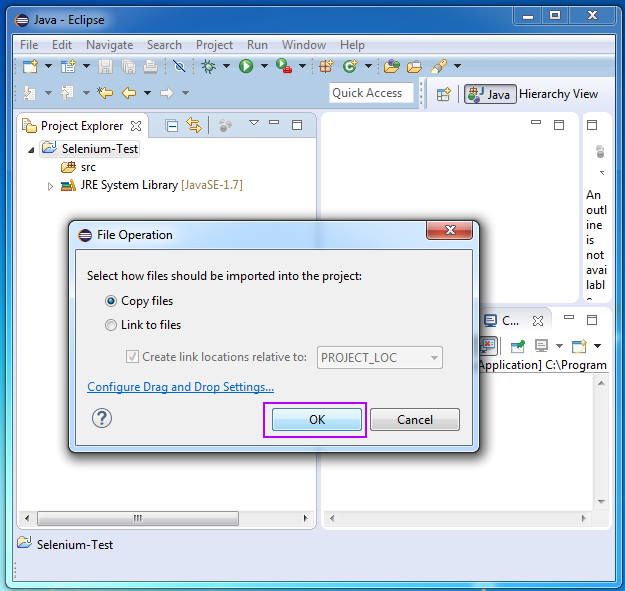
4. Drag-and-drop selenium-standalone jar into project 'src' folder

Howto setup Selenium browser automation framework in Exclipse IDE on Windows 7 - codingtrabla tutorial 3


Howto setup Selenium browser automation framework in Exclipse IDE on Windows 7 - codingtrabla tutorial 4


5. Add selenium-standalone jar to build path

Howto setup Selenium browser automation framework in Exclipse IDE on Windows 7 - codingtrabla tutorial 5


Howto setup Selenium browser automation framework in Exclipse IDE on Windows 7 - codingtrabla tutorial 6


6. Create new class "Example" in "src" folder
and copy example from Selenium Getting Started Guide
https://code.google.com/p/selenium/wiki/GettingStarted


Howto setup Selenium browser automation framework in Exclipse IDE on Windows 7 - codingtrabla tutorial 7


Howto setup Selenium browser automation framework in Exclipse IDE on Windows 7 - codingtrabla tutorial 8


Howto setup Selenium browser automation framework in Exclipse IDE on Windows 7 - codingtrabla tutorial 9


7. Run project

ANDROID: android.content.ActivityNotFoundException: Unable to find explicit activity class

Problem:  "android.content.ActivityNotFoundException: Unable to find explicit activity class" in LogCat when click button to open new Activity.

Environment: eclipse-adt-bundle (eclipse android development IDE)

Solving: all Activities should be declared in   AndroidManifest.xml file. To fix problem check manifest and add all your activities.

Example:

This is simple project with two activities :
1. MainActivity - it contains button to open second ativity
2. MyListActivity - second activity

ANDROID: android.content.ActivityNotFoundException: Unable to find explicit activity class