Showing posts with label git. Show all posts

Git confire our username and email

TrablaGit  confire our username and email


Git  confire our username and email


Git (/ɡɪt/) is a version control system (VCS) for tracking changes in computer files and coordinating work on those files among multiple people. Git is primarily used for software development,but Git can be used to keep track of changes in any files. As a distributed revision control system Git is aimed at speed, data integrity, and support for distributed, non-linear workflows.

Git was created by Linus Torvalds in 2005 for development of the Linux kernel, with other kernel developers contributing to Git initial development. Git current maintainer is Junio Hamano.

Git Official Site - https://git-scm.com/

Solving:


How to install Git on Windows 10

Trabla: How to install Git on Windows 10


How to install Git on Windows 10

Git (/ɡɪt/) is a version control system (VCS) for tracking changes in computer files and coordinating work on those files among multiple people. Git is primarily used for software development, but it can be used to keep track of changes in any files. As a distributed revision control system Git is aimed at speed, data integrity,[9] and support for distributed, non-linear workflows. Git was created by Linus Torvalds in 2005 for development of the Linux kernel, with other kernel developers contributing to its initial development. Its current maintainer is Junio Hamano.

Solving:


Git: install git on windows

Trabla: Git: install git on windows


Git  install git on windows


Solving:

1. Goto official Git download page and click "download git for windows"

https://git-scm.com/downloads

Git  install git on windows tutorial 1

Git  install git on windows tutorial 2


2.  Double click on git installer

Git  install git on windows tutorial 3


3. Click "Run"

Git  install git on windows tutorial 4

4. Git installation wizard first screen - click "Next"

Git  install git on windows tutorial 5

5. "Select Destination Location" screen - click "Next"

Git  install git on windows tutorial 6

6. "Select Components" screen - enable checkbox "Additional Icons - On Desktop"
and click "Next"

Git  install git on windows tutorial 7


7. "Select Start Menu Folder" screen - click "Next"


Git  install git on windows tutorial 8

8. "Adjusting your PATH environment" screen
- select "Use Git from the Windows Commands Prompt"
- click "Next" button

Git  install git on windows tutorial 9

9. "Configuring the line endings conversions" screen
- select "Checkout as-is, commit Unix-style endings"
- click "Next" button

Git  install git on windows tutorial 10

10.  "Configuring the terminal emulator to use with Git Bash" screen
- select "Use Windows' default console window"
- click "Next" button

Git  install git on windows tutorial 11


11. "Configuring experimental performance tweaks" screen
- click "Next" button

Git  install git on windows tutorial 12


12.  Installing ...

Git  install git on windows tutorial 13


13. Finish - click "Next"

Git  install git on windows tutorial 14

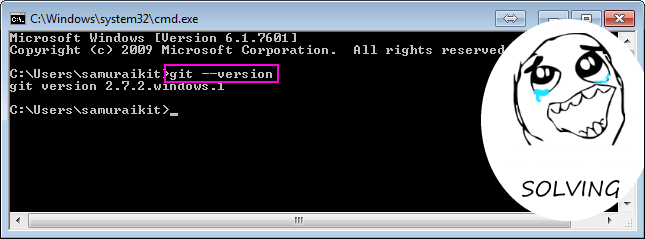
14. Check Git on windows command promt (CMD)
- run cmd.exe
- type following command
git --version

Git  install git on windows tutorial 15

Git & GitLab: error: pathspec 'commit'' did not match any file(s) known to git.

Trabla: Git & GitLab: error: pathspec 'commit'' did not match any file(s) known to git.


Gitand GitLab error pathspec commit did not match any file(s) known to git

Trabla Description:

This example is shown in GitLab

Gitand GitLab error pathspec commit did not match any file(s) known to git - tutorial 1


Commit command

git commit -m 'first commit'
But execution in Windows Command Line show error
error: pathspec 'commit'' did not match any file(s) known to git.
Gitand GitLab error pathspec commit did not match any file(s) known to git - tutorial 2

Solving:

Trabla in single quotes 

git commit -m 'first commit'
Use double quotes :

git commit -m "first commit"

Gitand GitLab error pathspec commit did not match any file(s) known to git - tutorial 3


node.js & express.js & bitbucket-git: fast setup example

Trabla:  node.js & express.js & bitbucket-git  fast setup example on Windows

Preconditions:
1. Already exist bitbucket account - https://bitbucket.org/
2. Git installed  - http://git-scm.com/downloads
3. Node.js installed - http://nodejs.org/download/
4. express project generator installed
globally for node.js
- run in cmd "npm install -g express-generator"


Solving:

1. Create new project in bitbucket - git + javascript as language
2. Run windows commands line
3. MKDIR C:\nodejs_projects

4. CD C:\nodejs_projects

5. express --css stylus myproject

6. CD  C:\nodejs_projects\myproject

7. npm install

8. git init

9. git add . 

10. git commit
- Press "insert" button on keyboard
- type commit message
- Ctrl+C
- :w    + press "Enter" button on keyboard
- :q    + press "Enter" button on keyboard

11. git remote add origin https://samuraikit@bitbucket.org/samuraikit/myproject.git
replace  https://samuraikit@bitbucket.org/samuraikit/myproject.git with yours

12. git push -u origin --all
- type your repository password

Make some changed in files

1. CD  C:\nodejs_projects\myproject

2. git add . 

3. git commit
- Press "insert" button on keyboard
- type commit message
- Ctrl+C
- :w    + press "Enter" button on keyboard
- :q    + press "Enter" button on keyboard

4. git push
- type your repository password